Molto1 Configurator — User Guide
Last updated 2026-10-12
Version 2.0 · October 2026
Molto1 Configurator programs Token2 Molto1-i multi-profile TOTP tokens through any standard PC/SC NFC reader: seeds, titles and settings for each of the 10 profiles, plus the token's clock, display timeout, lock PIN and customer key.
Download and install
The app ships for Windows as a portable program: nothing to install. macOS and Linux versions are coming soon.
- Download the Windows archive here.
- Extract the zip to any folder, for example
C:\Tools\Molto1. It holdsmolto1-gui.exe(the desktop app) andmolto1.exe(the command-line tool). - Double-click
molto1-gui.exeto start the app. To remove it later, delete the folder.
You need:
- Windows 10 or 11, 64-bit.
- A PC/SC contactless (NFC) reader. We recommend Token2's own readers:
- Desktop: Token2 Dual Reader — USB-A and USB-C, NFC and smart card (NFCUSBT2).
- Compact: Token2 Compact Dual Reader — USB, NFC and smart card (T2SR).
- Other PC/SC NFC readers also work, for example ACS ACR122U or ACR1252U, Identiv uTrust 3700 F or HID OMNIKEY 5022.
- Microsoft Edge WebView2, which is built into Windows 11. Most Windows 10 PCs already have it; if the app does not start, install the Evergreen runtime from Microsoft's WebView2 page.
Before you start
Two things are needed for every change: the token in programming mode, and its customer key.
- Programming mode. Long-press the power key on the token until it enters programming mode, then lay it flat on the reader and keep it there while the app works. The power key on the picture in the app pulses while it waits for a token.
- Customer key (also called the config password). New tokens use the factory key, so keep Factory selected. If the key was changed, choose Text or Hex and type it. The eye icon shows what you typed; the tick button checks the key on the token.
The app only works with Molto1-i tokens, whose serial number starts with 82665861. Any other card on the reader is shown with its serial and left untouched.
Careful with the customer key: the token allows 200 wrong attempts, and the app shows how many are left. After the last one, the token can only be factory reset.
Customer key and lock PIN
The customer key protects the token's configuration; the lock PIN protects its codes. They guard different things, so you usually want both.
| Customer key (config password) | Lock PIN | |
|---|---|---|
| What it protects | Every change: seeds, titles, profile settings, clock, display timeout, the lock PIN itself, and the key | Showing a code on the token |
| Who enters it | The administrator, in this app or molto1.exe |
The token's user, on the token's keypad |
| Factory value | The same factory key on every new token | None: no PIN is set |
| Length | Any text or hex value | 1 to 8 digits |
| If it is lost | It cannot be read back. Only a factory reset, which erases all profiles, makes the token usable again | Remove or replace it in this app with the customer key |
| Wrong tries | 200 tries; after the last one the key locks and the token must be factory reset | 100 tries |
The token keeps only a hash of the customer key and never sends it back, so it cannot be recovered from the token.
Recommendations
- Change the customer key before you set a lock PIN. With the factory key, anyone who holds the token and a reader can remove the PIN or overwrite the profiles, so a PIN on its own protects very little.
- Keep the customer key in a password manager, together with the token's serial number. Use one key per token, or at least per batch or customer, so one leaked key does not open every token.
- Register the seed with your service before you write it. A seed cannot be read back from the token. Don't keep seed files or screenshots once enrolment is done.
- Check the code after every write. The app shows the code the token should display; press the profile key on the token and compare.
- Use the service's own settings. Algorithm, digits and time step must match what the service expects; SHA1, 6 digits and 30 s are the usual defaults.
- Sync the clock before handing out a token, and whenever the drift shown in the app is more than a few seconds.
- Set a lock PIN on tokens that leave the office, so a lost token does not show codes to whoever finds it.
The main window
When the app starts it waits for a token: the token's display is dark and its power key pulses, as a reminder to enter programming mode.

As soon as a token is on the reader, the app reads it by itself and shows its clock on the token picture.
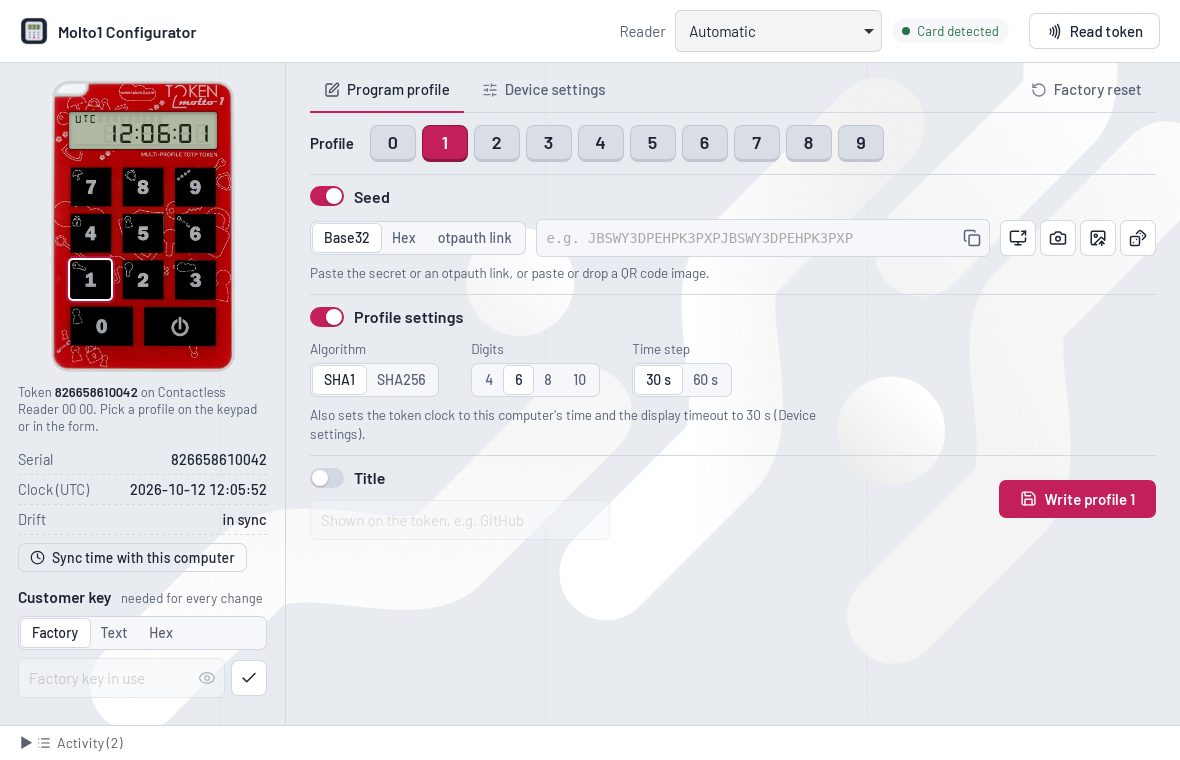
- Reader (top): Automatic picks the NFC reader with a token on it; choose a reader by name if you have several. The badge next to it says whether a card is detected. Read token reads the token again.
- Token picture (left): its display shows the token clock, or after programming the code the token should show. Click a key on it to choose that profile.
- Serial, Clock (UTC), Drift: what the token reports. Drift is the difference from this computer's clock. Sync time with this computer corrects it.
- Customer key: the key used for every change (see above).
- Tabs: Program profile, Device settings and Factory reset.
- Activity (bottom): a log of what the app did.
When the token has been off the reader for 20 seconds, the serial, clock and expected code are cleared, so they are never mistaken for the next token's.
Program a profile
A profile holds one account: its seed, settings and title. The token has 10 profiles, 0 to 9, one per key.
- Put the token in programming mode and lay it on the reader.
- Choose the profile: click its number next to Profile, or its key on the token picture.
- Enter the seed, the secret the service shows when you enrol:
- Paste it as Base32 or Hex, or paste the whole
otpauth://link; the format switches by itself. - Or use the icons to the right of the seed field. Hover over an icon to see what it does: scan the screen for a QR code, scan one with the camera, open a QR image file, or generate a random seed. You can also paste or drop a QR image on the seed field.
- With Scan screen, the app hides itself for a moment so it can see the enrolment page behind it.
- Paste it as Base32 or Hex, or paste the whole
- Check the profile settings: algorithm, digits and time step. A QR code or link fills them in; whatever it leaves out is set to SHA1, 6 digits and 30 s.
- Check the title shown on the token: up to 12 English letters and digits. A QR code fills it from the service name, or else the account name.
- Click Write profile N and keep the token on the reader until the app confirms.
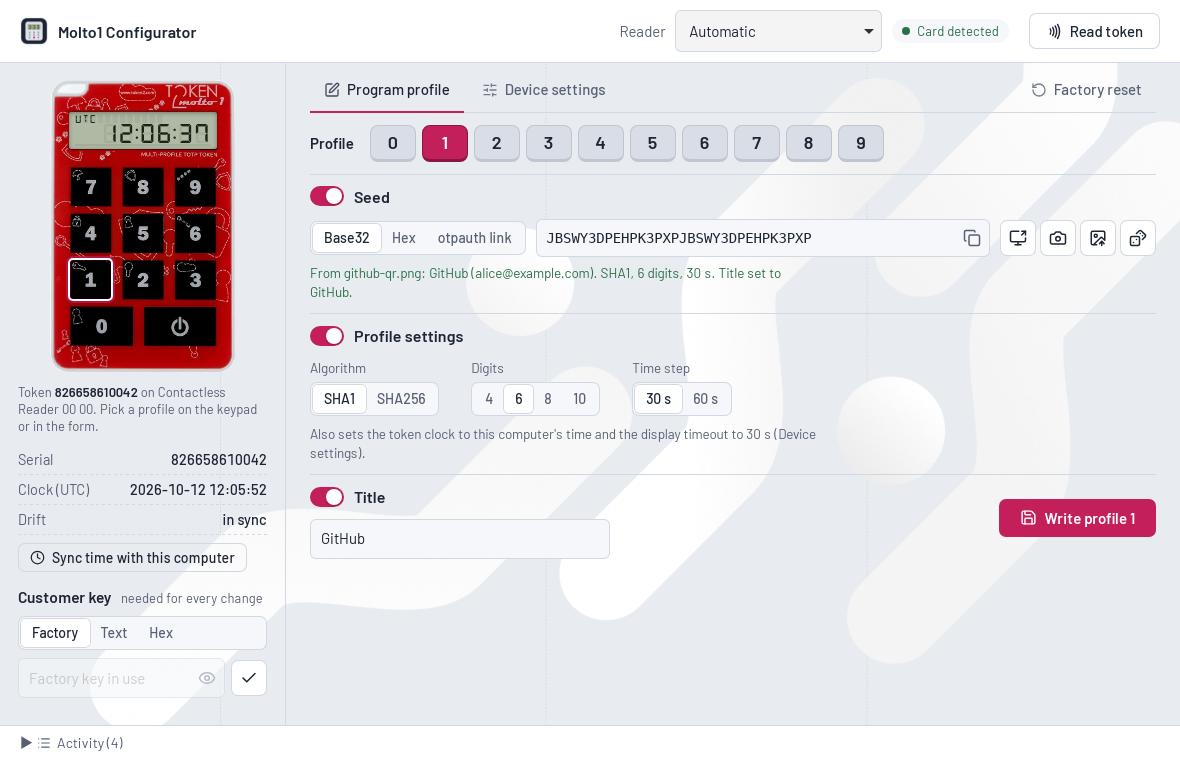
After writing, the token picture shows the code the token should display right now. Press the profile's key on the token and compare.
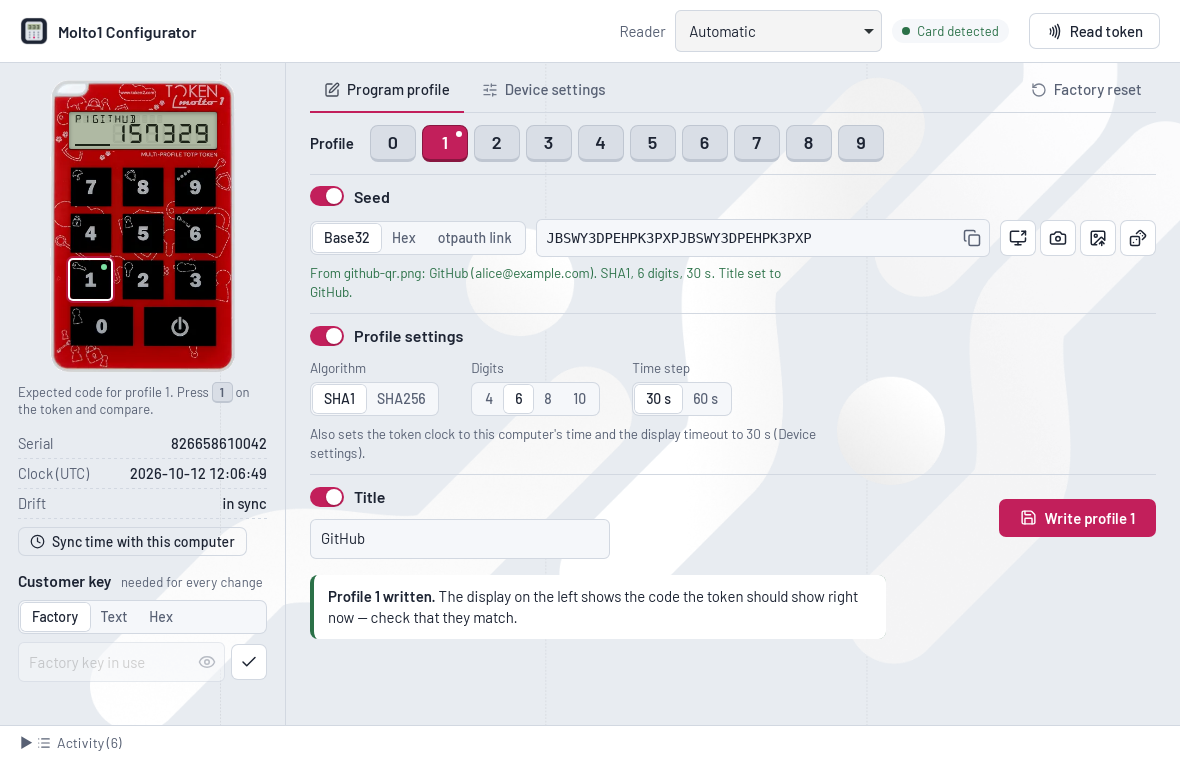
A Google Authenticator export QR code can hold several accounts. The app lists them; click the one for the selected profile. Counter-based (HOTP) accounts are listed as not usable, because the token only does time-based codes.
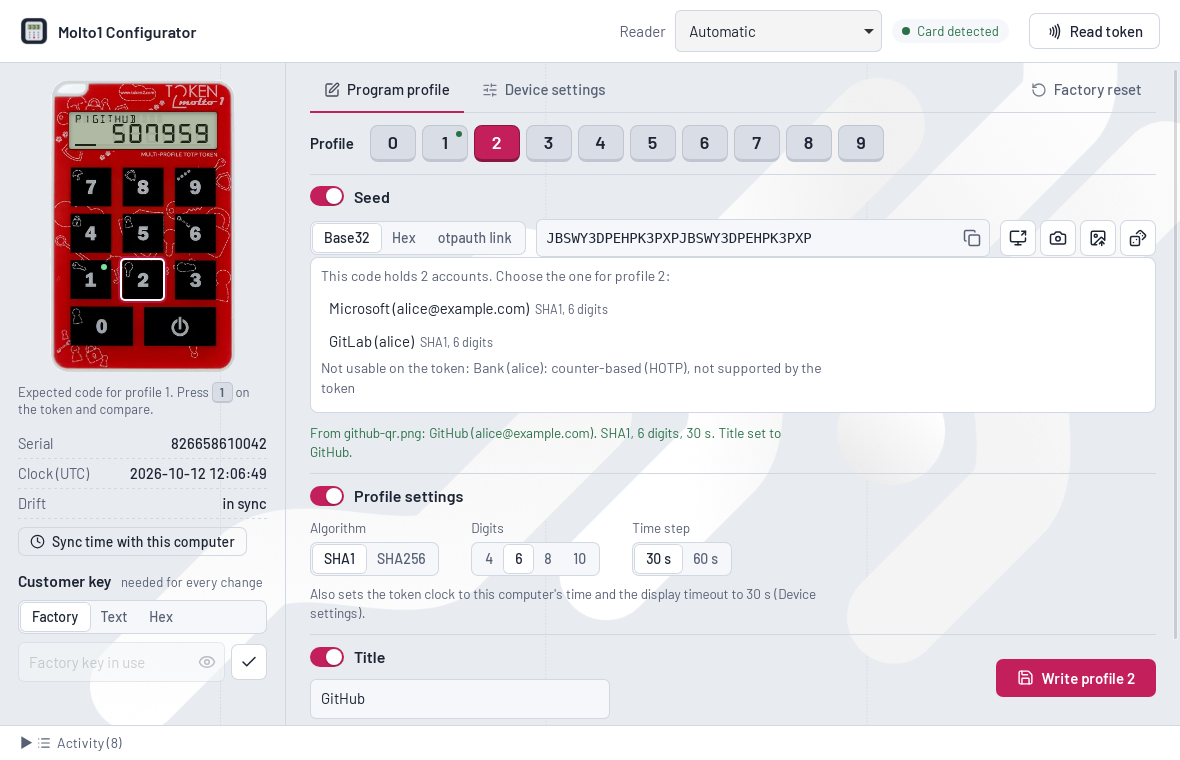
What each switch does:
- Seed and Profile settings on (default): writes the whole profile.
- Seed only: replaces the seed and keeps the profile's current settings.
- Profile settings without a seed: clears the profile's seed, so write a seed afterwards.
- Title: writes only the name shown on the token.
Writing profile settings also sets the token clock to this computer's time and the display timeout chosen under Device settings.
Device settings
Device settings apply to the whole token, all ten profiles, and changing them leaves every seed in place.
| Per profile | Whole token |
|---|---|
| Seed, title | Clock |
| Algorithm, digits, time step | Display timeout |
| Lock PIN, customer key |
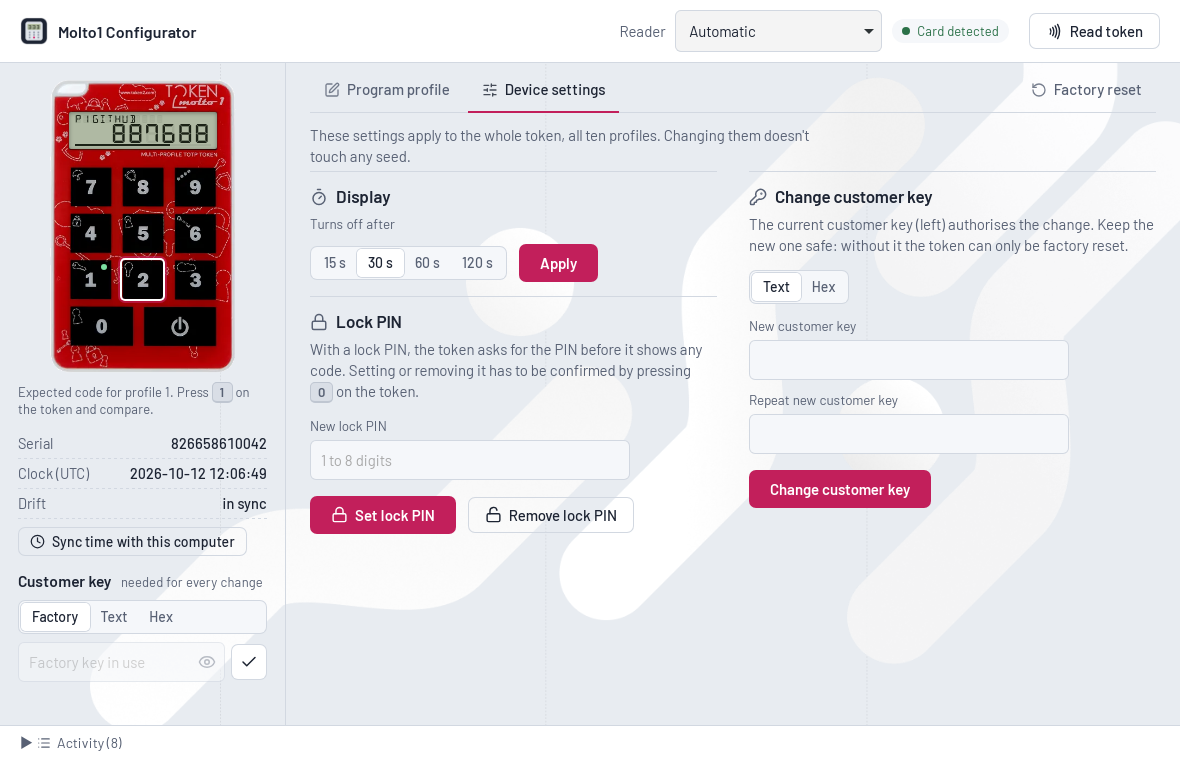
- Clock: click Sync time with this computer under Drift in the left panel. Use it whenever the drift is more than a few seconds.
- Display: choose how long the display stays on (15, 30, 60 or 120 s) and click Apply.
- Lock PIN: type 1 to 8 digits and click Set lock PIN, or click Remove lock PIN. Then press 0 on the token to confirm; until you do, nothing changes.
- Change customer key: the current key in the left panel authorises the change. Type the new key twice, as Text or Hex, and click Change customer key. The left panel then holds the new key; store it before you close the app.
Factory reset
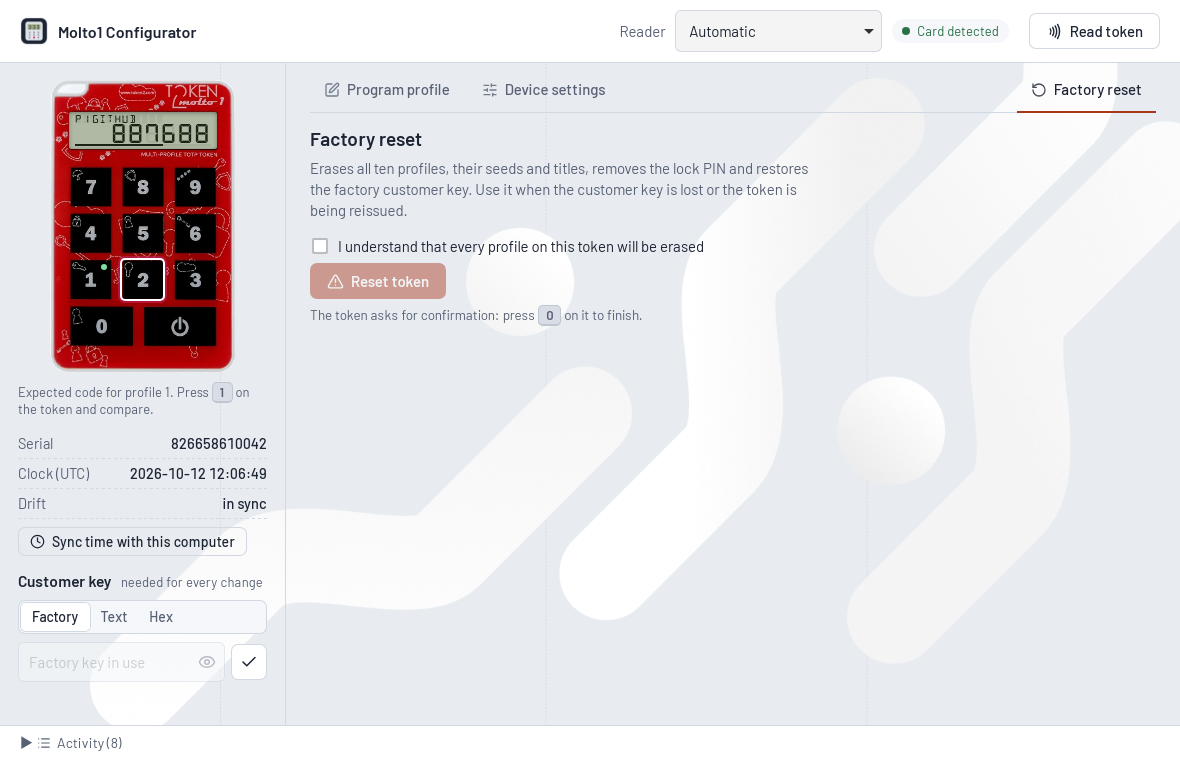
A factory reset erases all ten profiles with their seeds and titles, removes the lock PIN and restores the factory customer key. Use it when the customer key is lost or locked, or before reissuing a token to someone else.
- Open the Factory reset tab.
- Tick I understand that every profile on this token will be erased.
- Click Reset token, then press 0 on the token to confirm.
After the reset, re-enrol every account the token held: the old seeds are gone for good.
Troubleshooting
Most problems are a token that is not in programming mode, or a wrong customer key. Open Activity at the bottom of the window to see every step; tick Include APDU trace when you report a problem to Token2 support.
| What you see | What to do |
|---|---|
| No reader connected | Plug in the reader. If it still does not appear, install the reader maker's driver. |
| No card on reader / no token on the reader | Long-press the power key for programming mode, then lay the token flat over the middle of the reader. |
| This device is not a Molto1-i token | The card on the reader is something else (its serial does not start with 82665861). Remove it and place the Molto1-i. |
| Wrong customer key, N attempt(s) left | Check the key and whether it is Text or Hex, then try again. |
| Attempt limit reached | The key is locked. Only a factory reset makes the token usable again. |
| The token was removed from the reader | Keep the token still on the reader until the app says it is done, then try again. |
| The token shows a different code | Use Sync time and compare again. Check that algorithm, digits and time step match what the service expects. |
| The camera couldn't be opened | In Windows Settings, Privacy & security, Camera, allow desktop apps to use the camera. Or use Scan screen or an image file. |
| No QR code found on the screen | Make the QR code fully visible and large enough, then click Scan screen again. |
Command line
molto1.exe does everything the app does, for scripts and batch programming. It sits next to molto1-gui.exe in the extracted folder; run molto1 --help or molto1 <command> --help for every option.
molto1 readers
molto1 info
molto1 program -x 1 -b JBSWY3DPEHPK3PXPJBSWY3DPEHPK3PXP -n GitHub
molto1 program -x 2 --qr enrolment.png
molto1 program -x 3 --random-seed --algo sha256 --digits 8
molto1 sync-time
molto1 display-timeout 60
molto1 pin set 1234
molto1 -K OldKey key set --new-ascii NewKey
molto1 reset
-K <text>or-k <hex>gives the customer key; without it the factory key is used.--jsonprints results for scripts; exit code 0 means success, 6 means the device is not a Molto1-i.- Commands written for the old
molto1_config.pytool, such as--seedbase32 … --time 0 --step 1 --algo 1 --sleep 2 --profile 1, still work unchanged.