Using Token2 FIDO2 Security keys for OpenAI
Last updated 2026-09-28

OpenAI is an American artificial intelligence company founded in 2015 and based in San Francisco. It is best known for creating ChatGPT, the popular AI chatbot, as well as the GPT family of language models that power it.
Some of its other well-known products include DALL·E (image generation), Sora (video generation), and Whisper (speech recognition). It also offers an API so developers can build its models into their own apps.
The OpenAI account you log in to with a passkey is the same one you use for ChatGPT and other OpenAI services.
In this guide, we outline the steps required to configure Token2 security keys as a passkey method for authentication.The OpenAI account you log in to with a passkey is the same one you use for ChatGPT and other OpenAI services.
Requirements:
• Access to your OpenAI (ChatGPT) account.• A modern browser supporting security keys.
• A Token2 FIDO2 security key.
Setting Up a Passkey
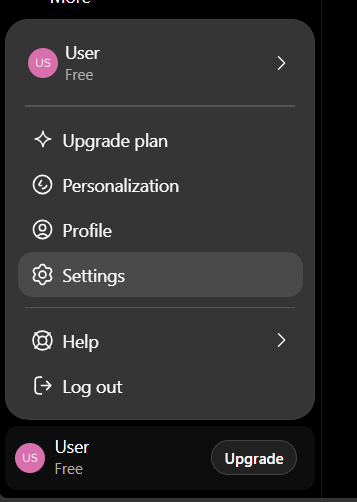
1. Sign in to ChatGPT on the web.2. Go to Settings.
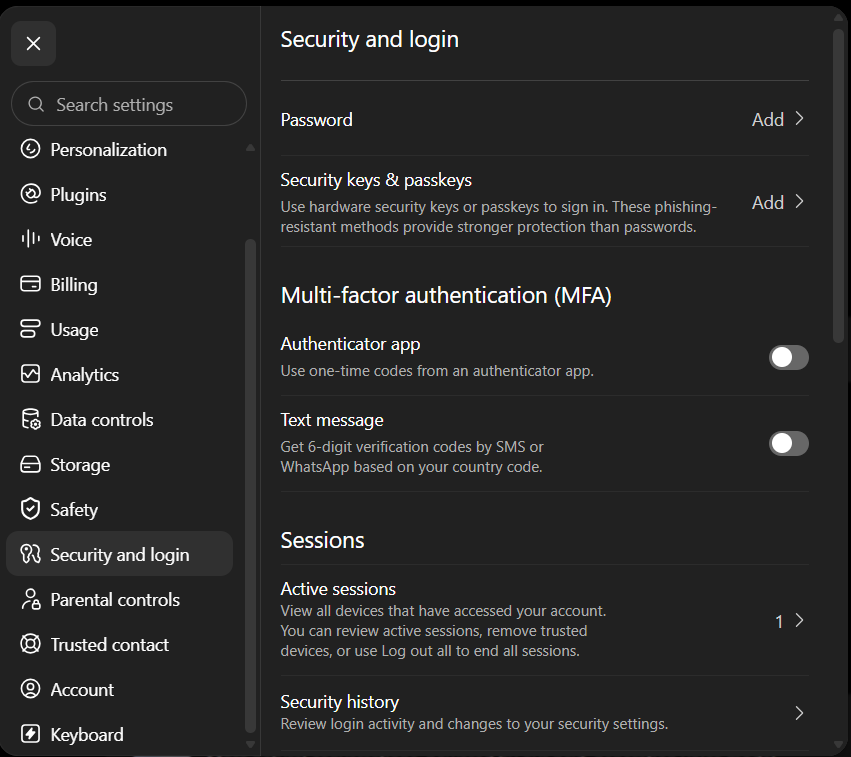
3. Select "Security and login".
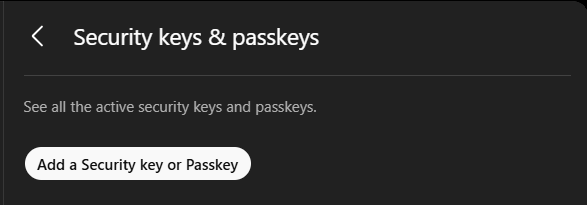
4. On the right side, click "Add" next to "Security keys & passkeys", then click "Add a security key or passkey".
5. If you do not have other authentication methods, a verification code will be sent to your email address. Copy the code from the email, paste it, and continue.
6. The system will then show you different options for saving your passkey, including software-based ones such as your device or a password manager.
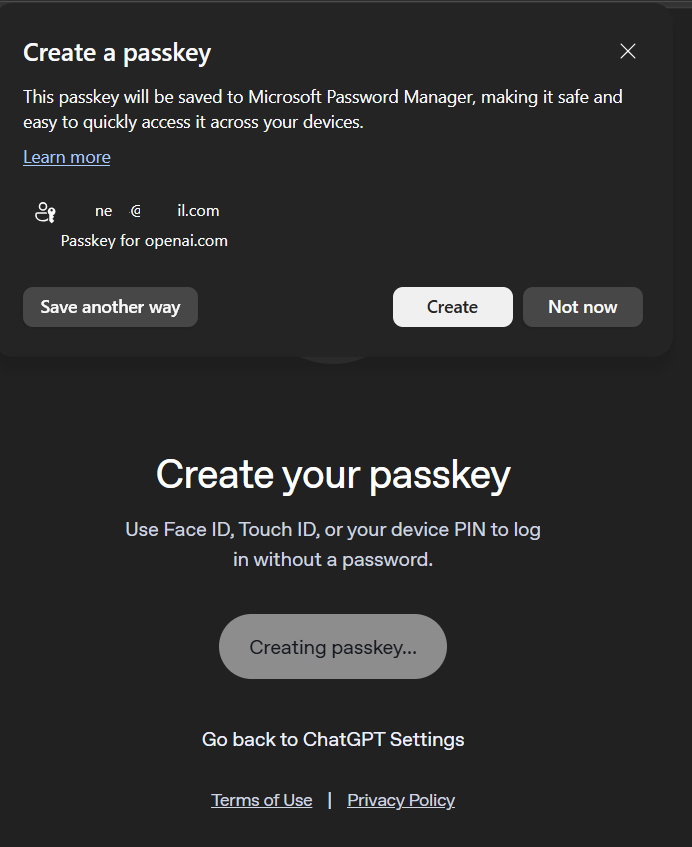
7. Click "Save another way", then choose "Use a phone, tablet, or security key".
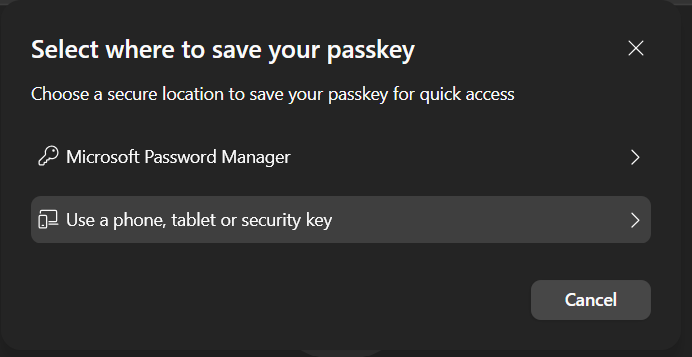
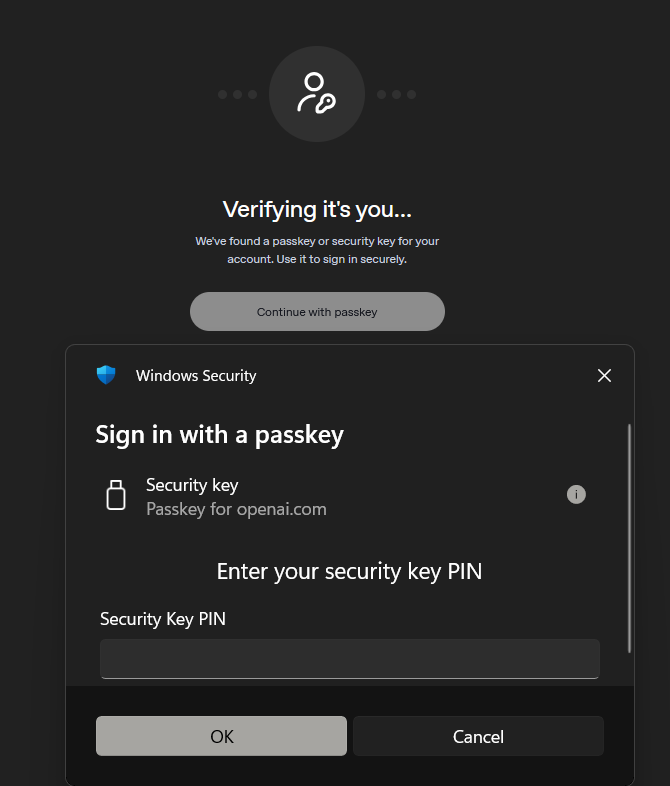
8. OpenAI will begin detecting the security key. Insert the security key, and if you have set a PIN for it, you will be prompted to enter it.
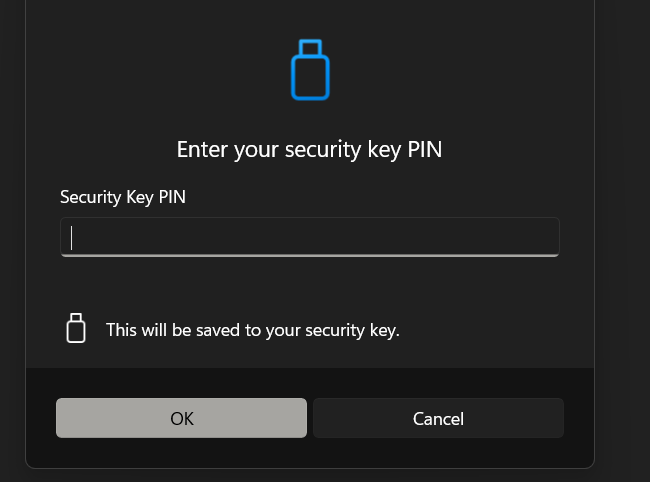
9. You will then be prompted to touch the button on the security key to complete registration.
Note: Security keys differ in how they are activated. Your key may require a tap or a button press to complete registration.
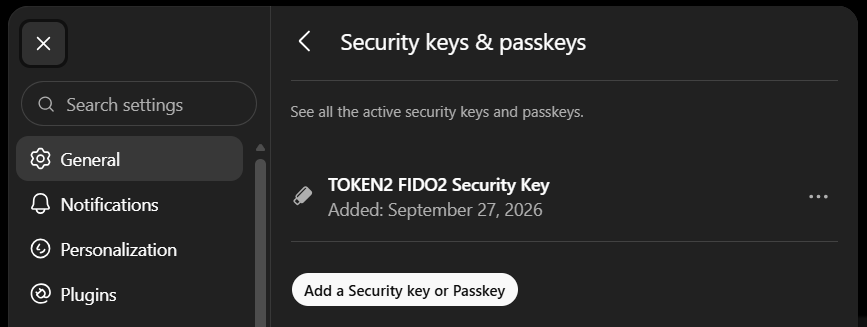
10. The enrolled security key will now appear under "Security keys & passkeys".
Activating "Advanced account security"
Adding a security key as a passkey does not turn off your other sign-in methods, so the security key is not yet required to sign in. To make it required, you need to turn on the "Advanced account security" feature.1. Scroll down to "Advanced security" and click "Enroll" next to "Advanced account security".
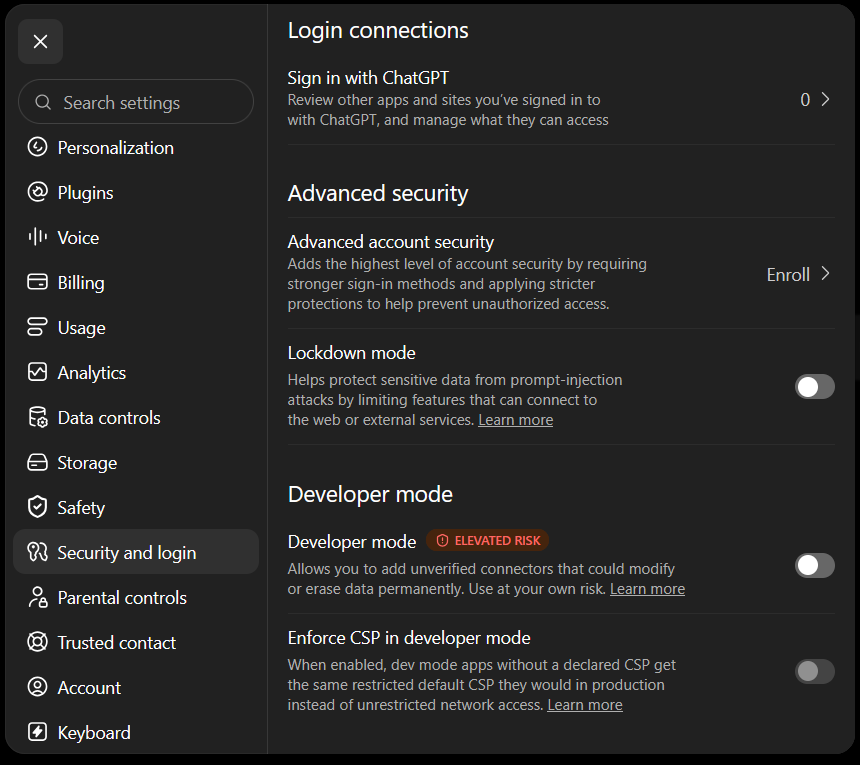
2. Click "Enroll" again.
3. A verification code will be sent to your email address. Copy the code from the email, paste it, and continue.
4. You will then see the "Set up advanced account security" wizard, which consists of 3 steps.
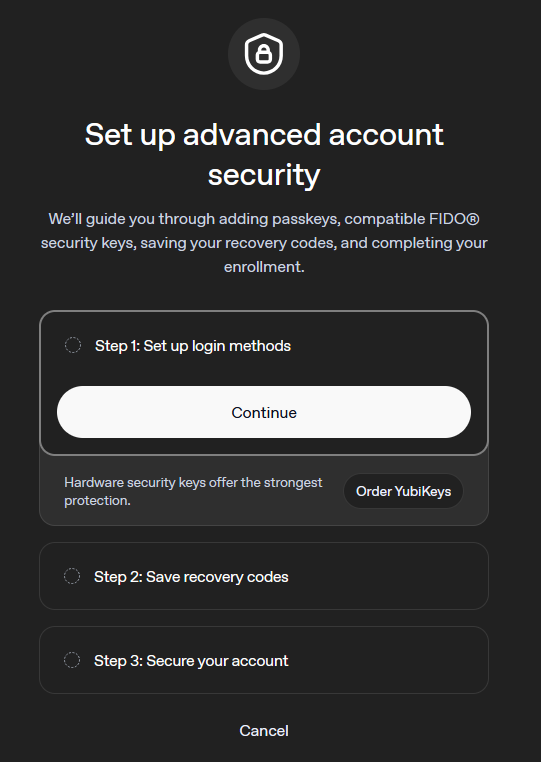
5. Click "Continue". The first step shows your enrolled passkeys, which will be used as the default sign-in methods for advanced account security. Click "Continue" again.
6. On the second step, OpenAI will provide recovery codes for account recovery. Download them and keep them in a safe place. Then check "I've saved my recovery codes" and click "Continue".
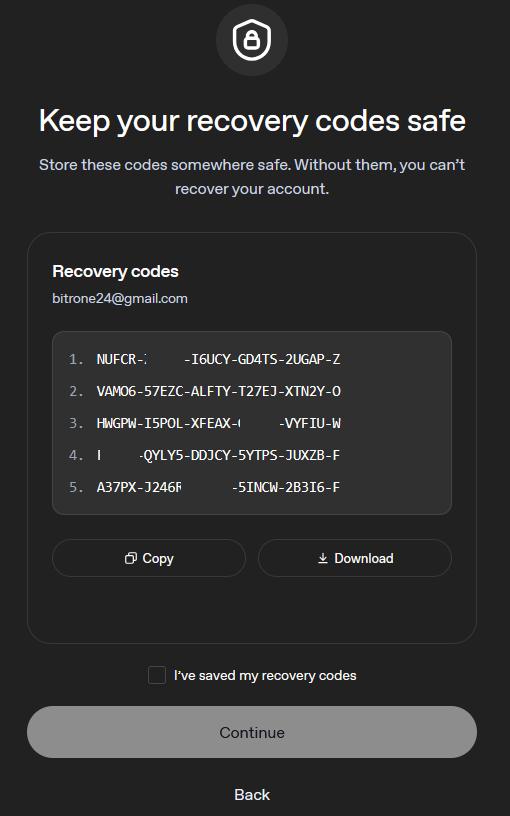
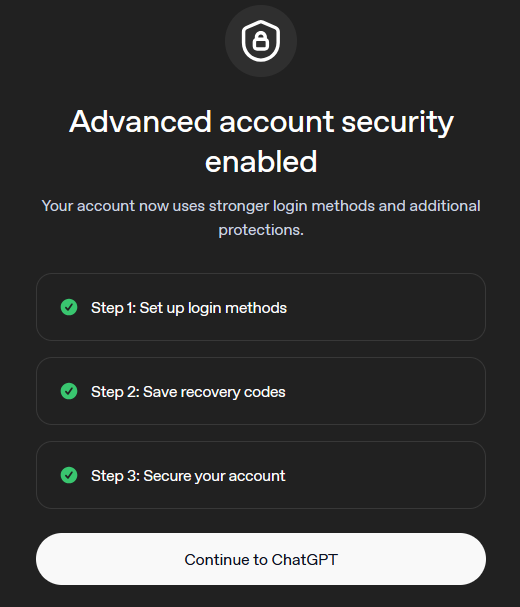
7. Click "Enroll" on the third step to complete the wizard.
How to Sign In with Your Passkey
When signing in, enter your email address, then enter the PIN of your security key and touch the key to log in.