Token2 Molto Configurator
Last updated 2026-10-13
Program your Token2 Molto hardware TOTP tokens directly from your phone — no computer, no card reader, no vendor software. Available on Google Play.
Overview
 A Molto token is a programmable hardware authenticator from Token2. It stores many time‑based one‑time‑password (TOTP) accounts at once, so a single token can replace an authenticator app across all of your logins — with the secrets held on a dedicated device that never connects to the internet. This app loads your accounts onto the token. It supports two device families:
| Model | Connection | Capacity | Extras |
|---|---|---|---|
| Molto2 | USB USB‑C / OTG, held connection | 100 profiles (slots 0–99) | Screen lock, read‑back of slots |
| Molto1 | NFC tap per operation | 10 profiles (slots 0–9) | Display PIN |
Both tokens share one interface. The app opens on a device chooser; everything after that — the Device, Program, Import and Tools tabs — works the same way for each.
What you need
- A Token2 Molto1 or Molto2 token.
- For the Molto2: a phone with USB‑C, or a USB OTG adapter/cable to host the token.
- For the Molto1: a phone with NFC.
- The camera permission is requested only the first time you scan a QR code.
Getting started
1 · Connect the token
- Molto2: plug it into the phone's USB port. Android may open the app automatically and jump straight to the Molto2 screen. Grant the one‑time USB permission if asked.
- Molto1: open the app, choose Molto1, then long‑press the token's power button until its screen shows “Programming mode” and hold it flat against the back of the phone.
2 · You're on the Device tab
Once connected, the app reads the token's serial number and clock. From here you navigate with the four tabs at the bottom: Device, Program, Import and Tools.
Device tab
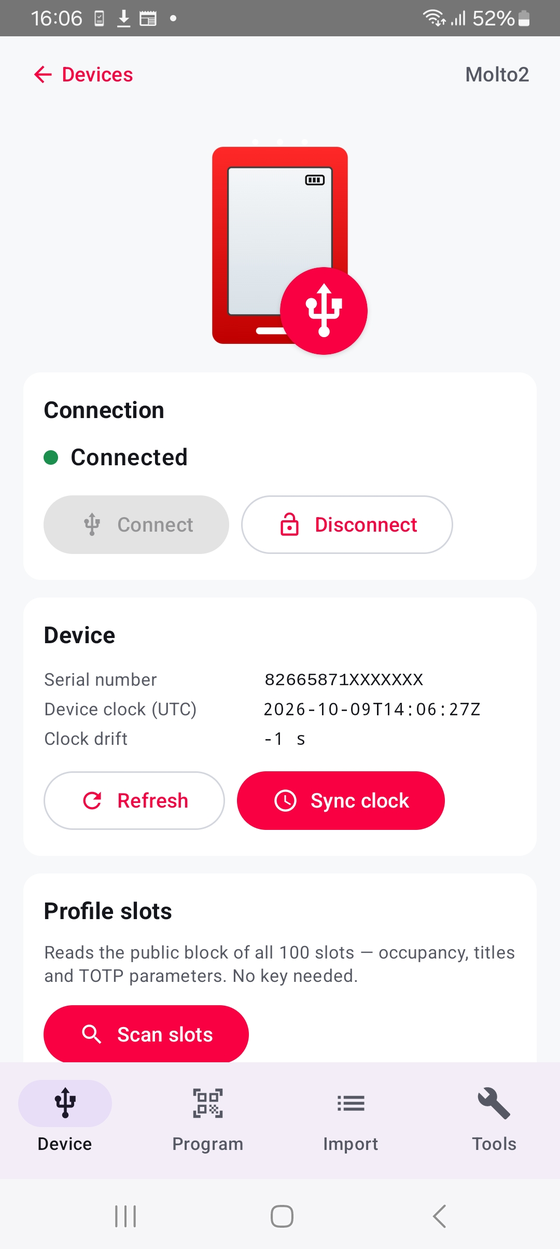
The home base. It shows the connection status, the token's identity, and — for the Molto2 — a scan of every profile slot.
Connection
A green dot and Connected means the app is talking to the token. For the Molto2 use Connect / Disconnect; for the Molto1 each action is a fresh tap.
Device info
- Serial number — read from the token. Molto2 serials start
82665871, Molto1 serials start82665861. - Device clock (UTC) and Clock drift — how far the token's clock is from your phone. TOTP codes depend on the clock, so if the drift is more than a few seconds, tap Sync clock.
Profile slots (Molto2)
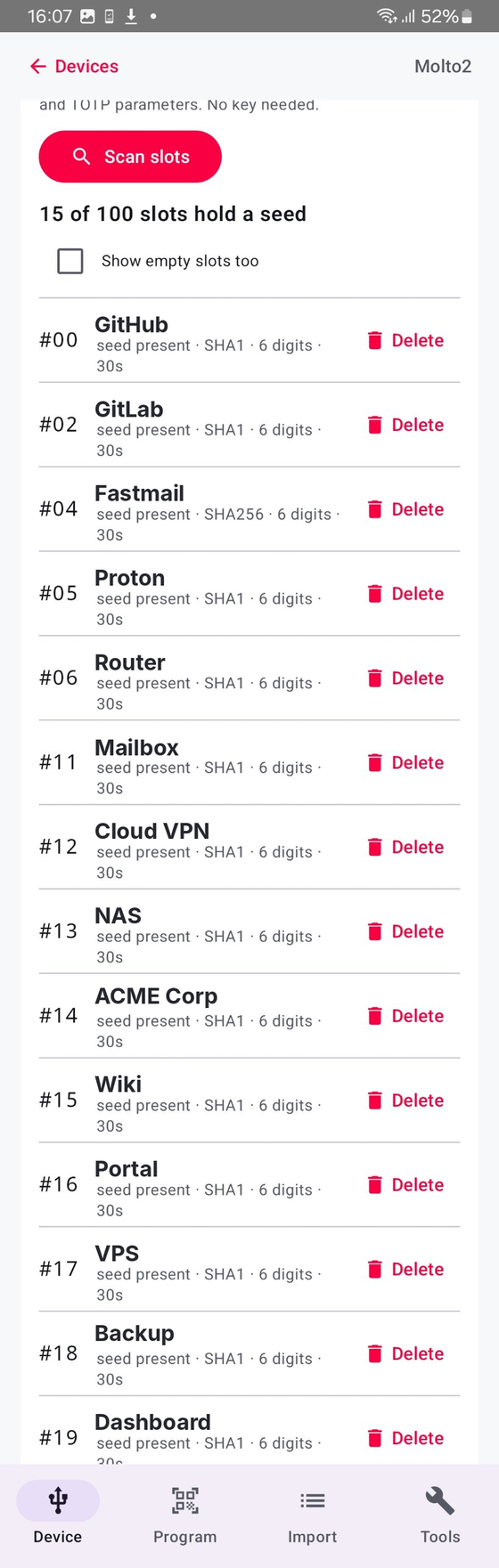
Tap Scan slots to read the public block of all 100 slots — which are occupied, their titles and TOTP parameters. No customer key is needed. Each occupied slot has a Delete button to clear just that seed.
Reading the slot list
After a scan you see “N of 100 slots hold a seed” and a row per profile:
#NN— the slot number.- The title stored on the token.
- seed present · SHA1 · 6 digits · 30s — the TOTP parameters.
Tick Show empty slots too to include unused slots. Use Delete to remove a seed you no longer need; this can't be undone.
Program a profile
This is how you add one account to the token.
1 · Add the secret
- Tap Scan QR code and point the camera at the QR shown during the website's two‑factor setup, or
- paste the secret or the full
otpauth://link into the box and tap Use this.
The app recognises common mistakes and explains them — for example scanning the token's own serial barcode, a Microsoft push‑notification QR, a passkey (FIDO) code, or a Google Authenticator export (which it routes to the Import tab).
2 · Confirm & write
- Check the title (max 12 characters — this is what the token's screen shows). Tap the eye to reveal the Base32 secret if you want to double‑check it.
- Set the algorithm, digits, time step and display timeout — see TOTP settings below. The defaults (SHA1, 6 digits, 30 s) suit almost every service.
- Pick the target slot with the − / + stepper. Occupied slots are marked; tick Replace to overwrite one.
- Tap Write to token (Molto2) or Tap to write (Molto1).
3 · Verify
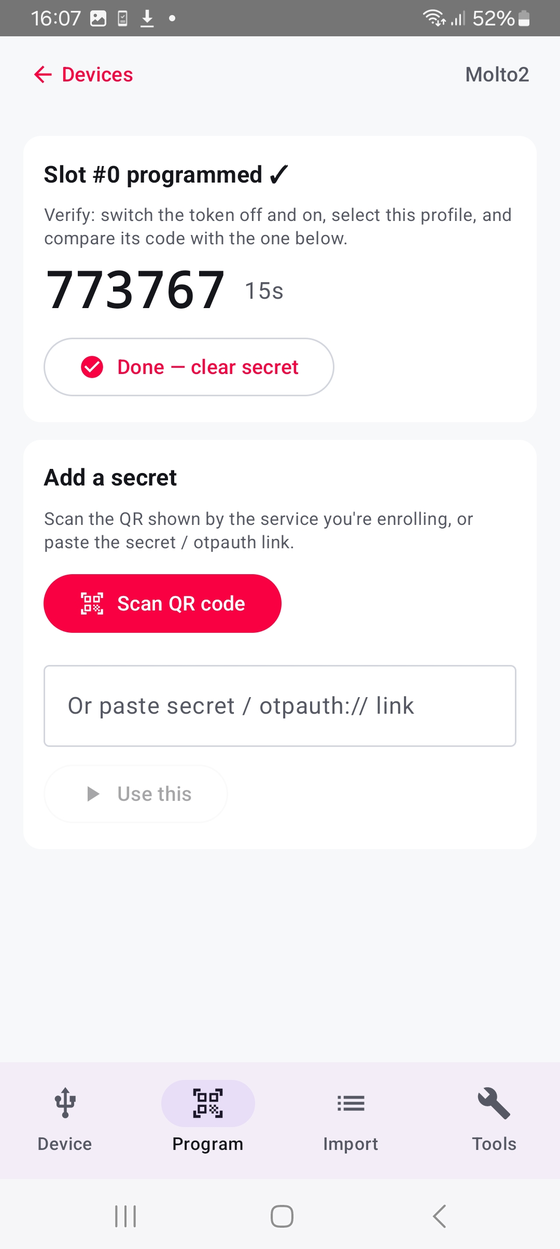
After a successful write the app shows a live TOTP code for that profile. Switch the token off and on, select the same profile on it, and confirm the code matches. Then tap Done — clear secret to wipe the secret from the app's memory.
Bulk import
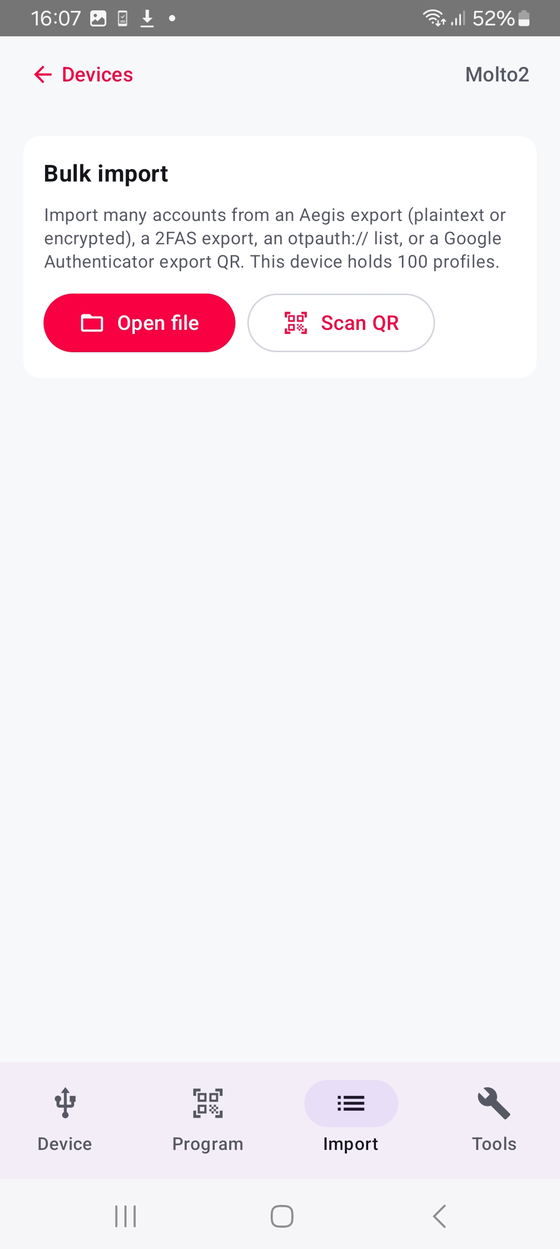
Load many accounts in one pass. Supported sources:
- Aegis export — plaintext or encrypted (you'll be asked for the vault password, which is used on‑device only).
- 2FAS export.
- A list of
otpauth://links, one per line. - A Google Authenticator export QR (“transfer accounts”). Multi‑QR exports are flagged so you can import each part.
- Tap Open file to pick an export, or Scan QR for a Google Authenticator transfer code.
- Choose the start slot and whether to overwrite occupied slots.
- Tap Check slots & preview. The app reads every target slot and shows a dry‑run plan: which account goes to which slot, its parameters, and any that will be skipped (occupied, no title, or beyond the last slot). Nothing is written yet.
- Review the plan, then tap Program N to write them.
Tools
Customer key
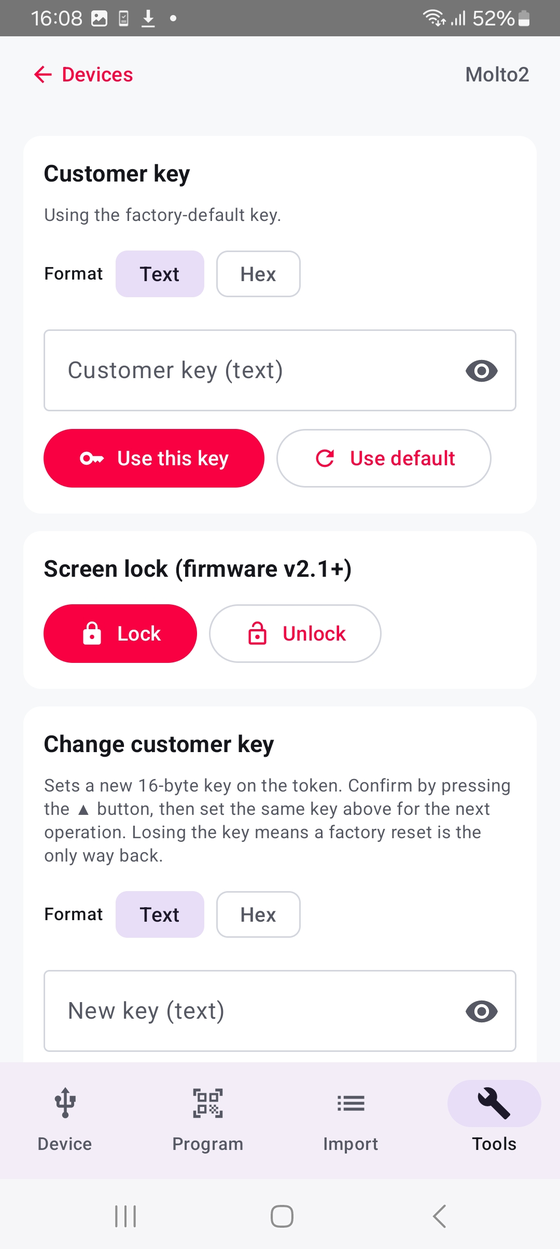
Programming a token needs its customer key. New tokens use the factory default, so you can leave this alone. If your token was re‑keyed, enter the key here: pick Text or Hex, type it (short keys are padded to 16 bytes automatically), and tap Use this key. Use default restores the factory key.
Screen lock (Molto2) / Display PIN (Molto1)
The Molto2 can lock / unlock its screen (firmware v2.1+). The Molto1 can set or remove a display PIN (up to 8 digits) that protects the on‑token code display.
Change customer key
Sets a new 16‑byte key on the token. You confirm on the device (press ▲ on the Molto2, or 0 on the Molto1), then set the same key under Customer key for the next operation.
Factory reset
Erases all profiles and restores the default key. You confirm on the device. Use it to start a token fresh or recover from a lost key.
Debug log
Tick Show APDU trace to see the raw commands exchanged with the token — useful only when diagnosing an issue.
TOTP settings explained
| Setting | Options | What it means |
|---|---|---|
| Algorithm | SHA1 · SHA256 | The hash the code is built from. Almost all services use SHA1; only change it if the service specifies SHA256. |
| Digits | 4 · 6 · 8 · 10 | Length of the code. 6 is standard. |
| Time step | 30 s · 60 s | How often a new code is generated. 30 s is standard. |
| Display timeout | 15 · 30 · 60 · 120 s | How long the token keeps showing a code before its screen clears. |
When you scan an otpauth:// QR, the app fills these in from the link automatically. If a service uses a value the token can't store, the app tells you rather than writing something wrong.
Security & privacy
- Nothing leaves your phone. The app has no network access, no accounts and no analytics. Secrets are read locally and written straight to the token.
- Secrets are wiped from memory after you finish programming (and when you tap Done — clear secret).
- Encrypted Aegis vaults are decrypted on‑device; the password is never stored or sent.
- The token holds the secrets offline. A hardware token can't be phished or copied by malware the way an app on a connected phone can.
- The app refuses to write to anything that isn't a genuine Molto (it checks the serial), so a mistaken NFC tap can't corrupt another device.
Troubleshooting
| Symptom | Fix |
|---|---|
| Molto2 not detected | Re‑seat the USB connector; most phones need a USB‑C or OTG adapter to host. Only one app can use the token at a time. |
| Molto1 won't read / “lost contact” | Long‑press the power button until the screen shows Programming mode, then hold it flat against the back of the phone. It times out — re‑tap if needed. |
| “This isn't a Molto1” after a tap | You tapped a different NFC device (a card, a security key). Move other cards away and tap the Molto1 only. |
| Codes rejected after programming | Check Clock drift on the Device tab and tap Sync clock. |
| “Authentication failed — N attempts left” | The customer key is wrong. Set the correct key under Tools → Customer key. Too many wrong attempts lock the token (factory reset to recover). |
| Wrong QR scanned | Scan the QR shown by the service during 2FA setup, not the token's serial barcode or a push/passkey code. |
FAQ
Can one token hold accounts from different services?
Yes — that's the point. Each account goes in its own slot (up to 10 on the Molto1, 100 on the Molto2), and you pick which one to display on the token.
Do I still need my phone after programming?
No. Once an account is on the token, the token generates its codes on its own screen, offline.
What happens if I overwrite a slot?
The old account in that slot stops working. The app warns you and asks you to tick Replace before overwriting an occupied slot (on the Molto2, where occupancy can be read).
Is my data sent anywhere?
No. The app has no internet permission at all.