Generate my own seeds and Entra ID (Azure AD) CSV file for programmable tokens
Last updated 2026-10-26
 With Microsoft Entra ID OATH hardware tokens functionality, you are expected to receive a CSV file from us and upload it to the Microsoft Entra admin center (this feature requires a Microsoft Entra ID P1 or P2 license). With classic tokens, this file contains the factory set seeds and the seeds cannot be modified.
Different from classic tokens, with programmable tokens you can set the seeds yourself using one of our NFC Burner or USB Config tools. This will make sure only you have the seeds. Other use cases are: reusing a hardware token that was previously enrolled in a different system, using a previously owned device, in cases where there is no possibility to request seeds directly from Token2 (i.e. if bought from indirect resellers) and so on.
In this guide, we will instruct how this can be achieved using our TOTPToolset app.
- You can use both the online version of TOTPToolset or download and launch Token2 TOTP Toolset - local. You may want to run this app on a computer that is fully offline (or firewalled) to be sure no information is being transferred to third parties
- Install one of the provisioning app to be used with your token. Please use this page to find the corresponding version.
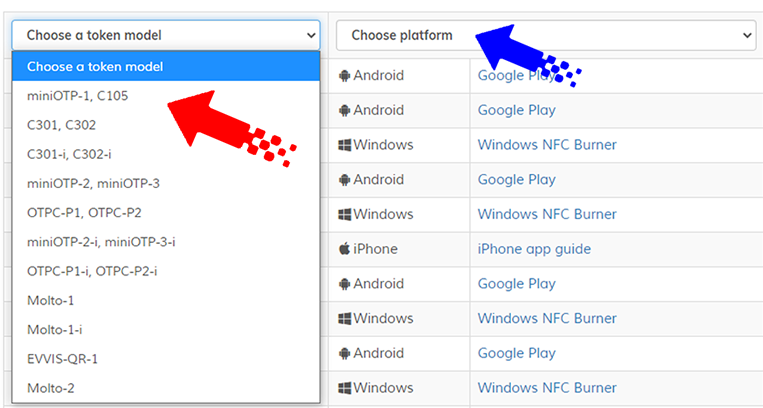
Optionally, after the app has been installed, you can set the device to flight mode with Bluetooth, Wifi and Cellular data off to ensure no data will be transferred outside - Generate a random seed using Token2 TOTP Toolset. You can generate using the standard method or "true random" method, relying on online randomization service.
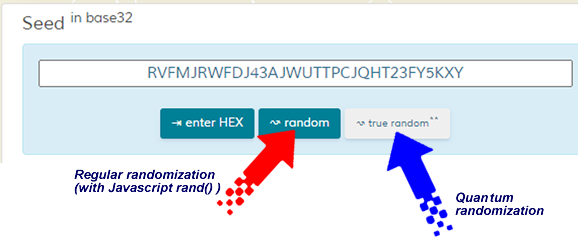
Important: Do not start the process without clicking on one of the randomization options. The default seed shown on the page is not randomized. - After the seed is generated, burn the seed using the provisioning app (NFC Burner or USB Config tool):
- Connect the NFC writer (or the token's USB cable for USB-programmable models) and launch the NFC Burner for Windows or the USB Config tool.
- Copy the generated seed (base32) from the TOTP Toolset and paste it into the seed field.
- Turn the token on and place it on the reader.
- Click Burn seed and wait for the confirmation message.
- Open the Token2 NFC Burner app on your Android phone (NFC must be enabled).
- Scan the QR code shown on the TOTP Toolset (or enter the seed manually).
- Turn the token on and hold it against the back of the phone, near the NFC antenna.
- Tap Burn seed and keep the token in place until the app confirms success.
- Open the Token2 NFC Burner app on your iPhone.
- Scan the QR code shown on the TOTP Toolset (or enter the seed manually).
- Tap Burn seed, then turn the token on and hold it near the top edge of the iPhone when prompted.
- Keep the token still until the app confirms success.
See Tools for programmable tokens for the right app for your token model.
- Verify the OTP shown on the device with the OTP value shown on the TOTP Toolset
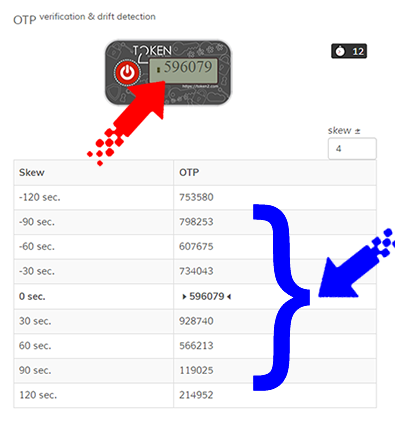
Important: If your OTP is not displayed on the virtual token, look in the table beneath. You can also try to increase the skew value (which is ±4 by default). If the skew is more than 420 seconds, it is highly recommended adjusting the time on the token where possible, as the time drift tolerance in Entra ID MFA is 450 seconds. - Enter the serial number of your token and the username in UPN format to the relevant fields on the TOTP Toolset and click on "⇲ append to CSV" button
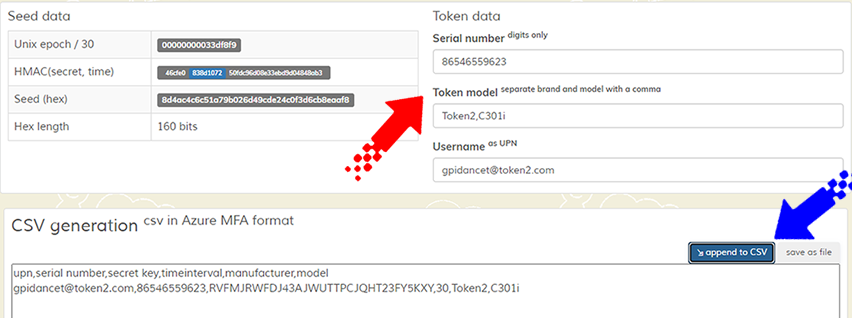
- Repeat steps 3 to 6 for every token you are provisioning
- Click on "save as file" button and save your MFA CSV file
- Import the CSV to Entra ID MFA as described in this guide
- Your tokens are ready to be activated for users
Command-line tools
Utilizing command-line tools can also streamline the process of automating seed generation. The following example demonstrates the utilization of the token2-config.exe tool, a Windows command-line utility designed for provisioning our second-generation NFC programmable TOTP tokens. An external NFC Writer device may be required for this method.
Generate and burn random seeds using PowerShell
Open PowerShell session or create a ps1 script with the commands below:
1..32 | % { [String]$randkey += $(Get-Random -InputObject A,B,C,D,E,F,G,H,I,J,K,L,M,N,O,P,Q,R,S,T,U,V,W,X,Y,Z,2,3,4,5,6,7) }
# Execute the command with the generated seed
$cmd = "token2-config.exe --seed $randkey --results-file token2_result.txt"
Invoke-Expression $cmd
This will generate a random string of characters (letters A to Z and numbers 2 to 7, which is the base32 alphabet) and then use that string as a seed for a command-line executable (token2-config.exe) while also saving the results to a file (token2_result.txt). This file will contain the serial numbers of the tokens provisioned along with the written seed value, and can be used, for example, to create a csv file for Entra ID MFA.