TOTPRadius Network configuration
Last updated 2026-10-21
Security notice: PHP vulnerabilities (October 2026)
Published 2026-10-21
On 21 October 2026 the PHP project disclosed two critical vulnerabilities, CVE-2026-109618 and CVE-2026-109619 (CVSS 9.2). Under certain conditions, they could let an unauthenticated attacker run code on a server through crafted HTTP requests.
Exposing the TOTPRadius VPN Portal directly to the public Internet is now discouraged.
If your VPN Portal is published via NAT with "Allowed remote IPs" set to "Any", we recommend the following:
- Remove the public NAT rule if you don't need the portal's features (FIDO2/Passwordless, OAuth2/SSO, self-service enrollment).
- Otherwise, restrict access to known source IP ranges or countries, or publish the portal only through a reverse proxy or WAF that limits request size and blocks
multipart/form-datarequests. - Never expose the admin interface (ports 22, 80, 443) to the Internet.
Standard deployments without the VPN Portal, with management access limited to admin workstations as shown above, are not exposed.
An updated appliance image will be announced later. For help reviewing your setup, contact our support team.
TOTPRadius – standard implementation diagram
The network diagram below is a recommended setup for a single TOTPRadius network (without VPN Web portal interface activated):
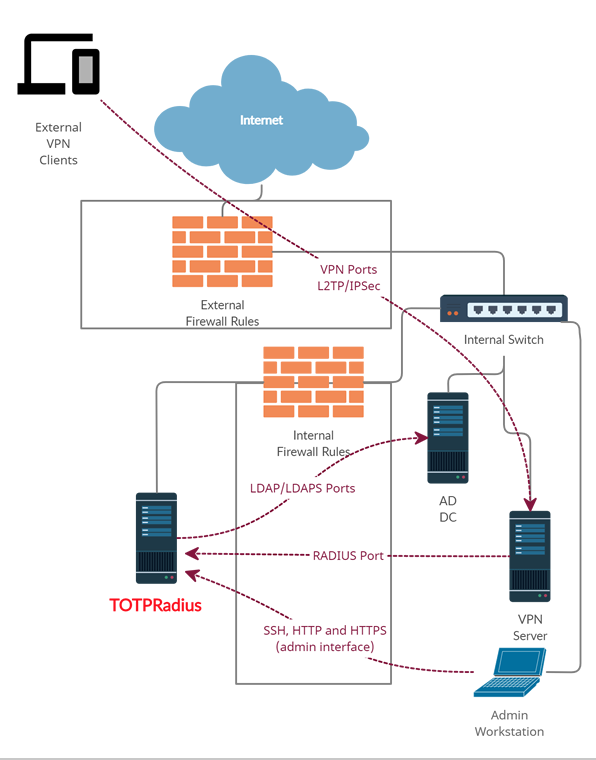
As shown on the diagram, access to TOTPRadius appliance is limited to 3 other hosts only:
- RADIUS port from your VPN server to TOTPRadius appliance (UDP 1812)
- LDAP or LDAPs ports ( TCP 389/636 )from TOTPRadius to your Active Directory Domain controller
- Access to the TOTPRadius management interface ports (SSH, HTTP and HTTPS – tcp 22, 80 and 443) is recommended to be restricted to admin workstations only
TOTPRadius – VPN Web Portal implementation diagram
If you wish to implement FIDO2/Passwordless or Azure AD Oauth2/SSO VPN access for your users (available starting from v0.2.5), there is an additional configuration required in your network layout. The web portal is running as a separate web server on the same virtual appliance, instead of standard https port (443) used for admin interface, the VPN web portal responds on port 9443. This port cannot be used directly for technical reasons, so has to be NATted to port 443.
The network diagram in this case will look like shown below:
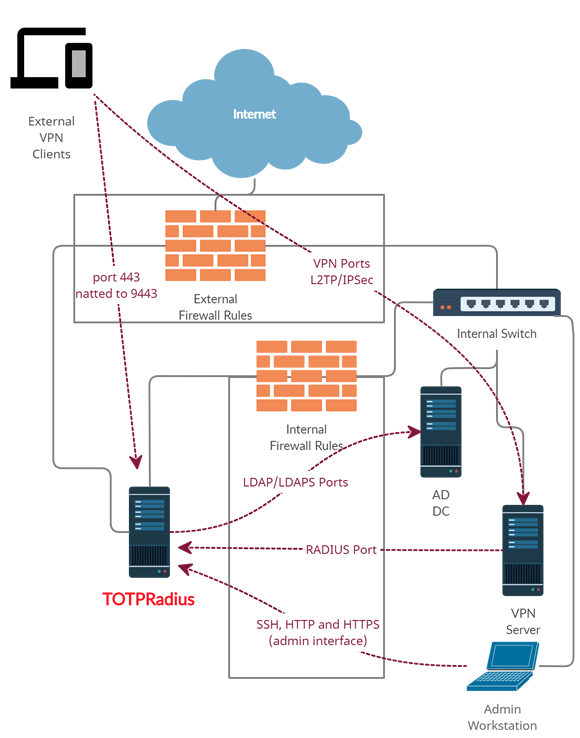
Below is the description of how such NATting can be configured using Meraki MX64 as an example.
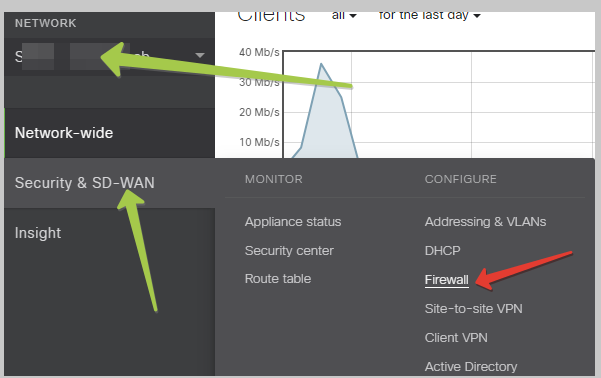
Login to Meraki Cloud Dashboard, and navigate to your Network. Then, navigate to “Security & SD-WAN” and select Firewall
Then, scroll down to 1:Many NAT section and add a NAT rule as shown on the example below
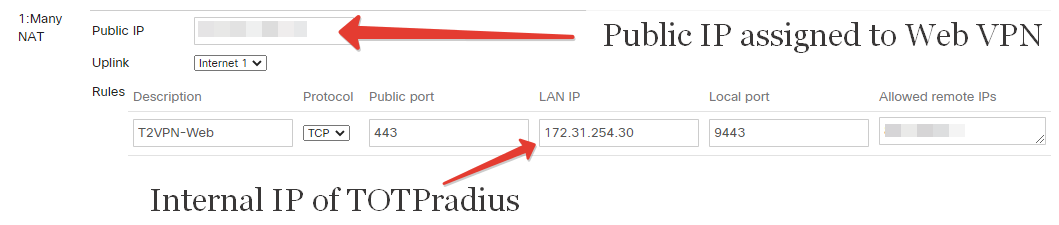
Once this is configured, the VPN Web interface should be accessible from public Internet via https://public_IP/ URL (where public_IP is the one you specified in the 1:Many NAT rule). Leave "Allowed remote IPs" empty or "Any" if you plan to expose the appliance without using any CDN. Please note that both FIDO2 and Oauth2 interfaces require an FQDN with a valid Web Certificate in order to function properly.