Windows OS Login with PIV-Enabled Token2 Key or Card
Last updated 2026-06-01
Table of Contents
1. Overview
This document explains how to configure the Certificate Authority on Windows Server before smart card login certificates can be requested and loaded onto FIDO keys or cards. There are five main steps:
- Create a smart card login template
- Publish the template in the Certification Authority
- Edit Group Policy for user enrollment
- Auto-enroll certificates on users' machines
- Manually enroll for the current user
2. Prerequisites
- A Windows Server with a domain controller and certificate authority configured. This document uses Windows Server 2016 with AD CA.
- Guest machines (could be the Windows Server itself) and Windows accounts already joined to the CA's domain. This document uses Windows 11 Enterprise.
- The FIDO product supports the PIV function.
- The Minidriver
Token2 PIV SmartCard Minidriveris installed on relevant machines.
3. Set up the Smart Card Login Template for User Self-Enrollment
A smart card login certificate template is required before loading a certificate onto your keys. Follow the steps on the Windows Server that runs the CA:
3.1 Create a Smart Card Login Template for User Self-Enrollment
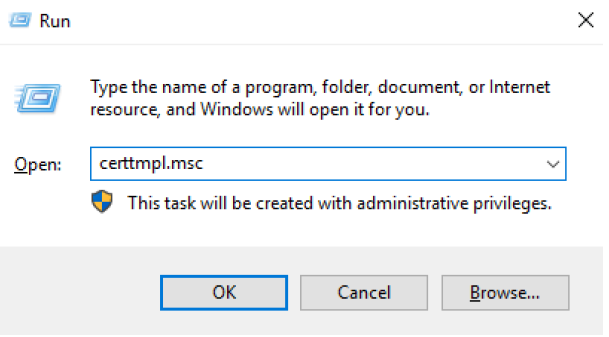
- Press Win+R, type
"certtmpl.msc", and press Enter. - Click Certificate Templates, right-click Smartcard Logon, and select Duplicate Template.
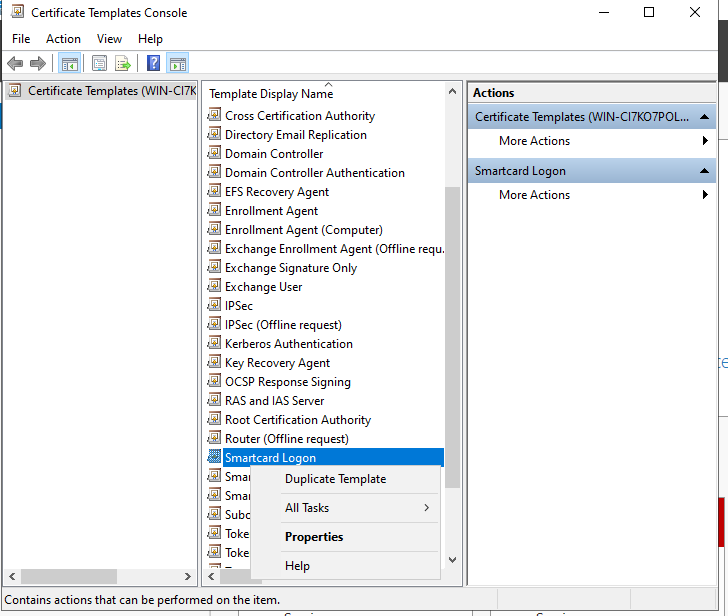
- Select the General and Compatibility tabs, and make the following changes:
General - Change the name of the template (i.e. SmartCard_Token2) and enable publishing it in you Active Directory
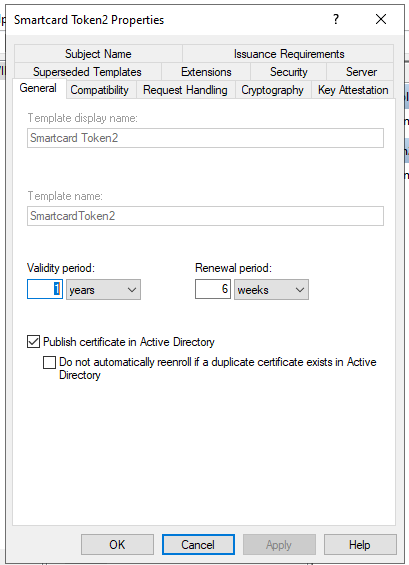
Compatibility - The Certification Authority should match your CA server's OS version, and the Certificate recipient should match the oldest OS version in your domain.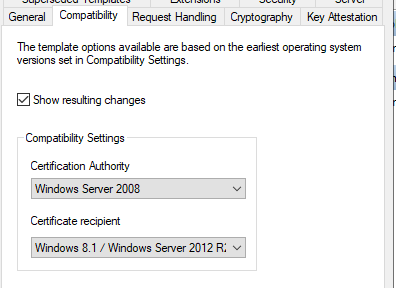
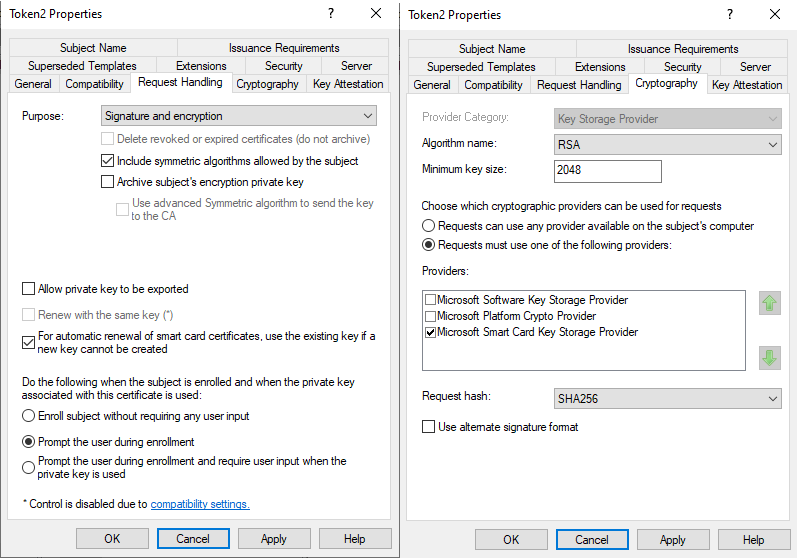
- Select the Request Handling and Cryptography tabs, and make the necessary changes:
- Algorithm name: Select either RSA, ECDH_P256, or ECDH_P384 from the dropdown.
Note: ECDH_P521 is not supported.- If an ECDH algorithm is selected, client Windows systems must have Elliptic Curve Cryptography (ECC) Certificate Login support added via Group Policy or the registry.
- Minimum key size: If RSA was selected, enter 2048. For ECDH_P256 or ECDH_P384, this field is populated automatically.
- Do not check "Allow private key to be exported" unless you need to allow other domain users to enroll their keys.
- On the Security tab, add Read, Write, and Enroll permissions for administrator groups, and Enroll and Autoenroll permissions for target users.
- Ensure "Domain Users" exist and that Read, Enroll, and Autoenroll options are checked. Other user permissions can be adjusted as needed.
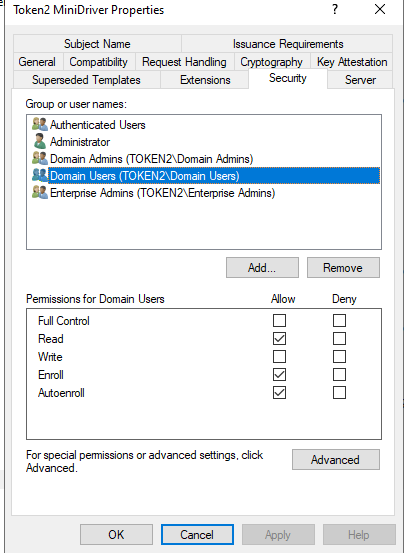
- Ensure "Domain Users" exist and that Read, Enroll, and Autoenroll options are checked. Other user permissions can be adjusted as needed.
- Click Apply, then OK to close the template properties window. Close the Certificate Templates window.
3.2 Add the Template to the Certification Authority
- Right-click the Windows Start button and select Run.
- Type
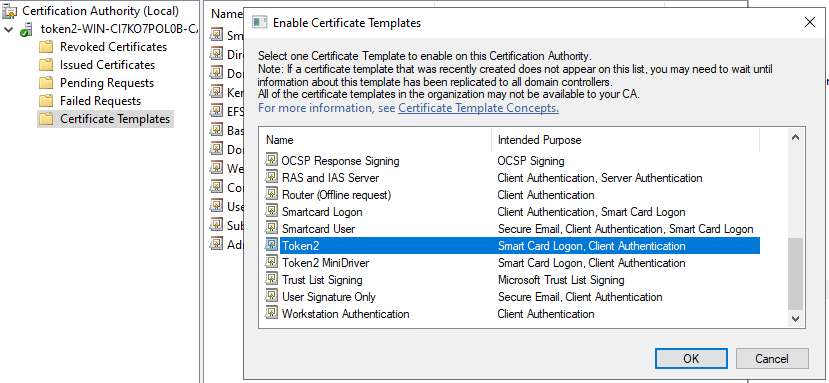
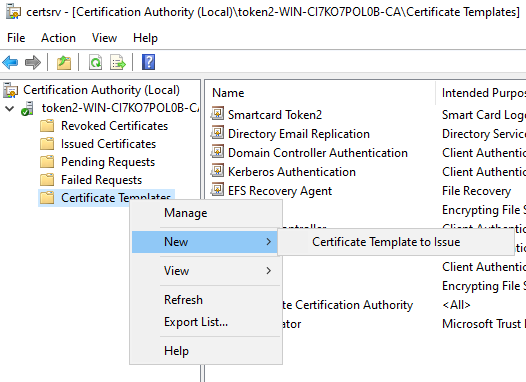
"certsrv.msc"and press Enter. - Click Certification Authority, double-click your server, right-click Certificate Templates, select New, then Certificate Template to Issue.
- Select the newly created self-enrollment template and click OK.
3.3 Edit Group Policy to Enable Auto-Enrollment
- Right-click the Windows Start button and select Run.
- Type
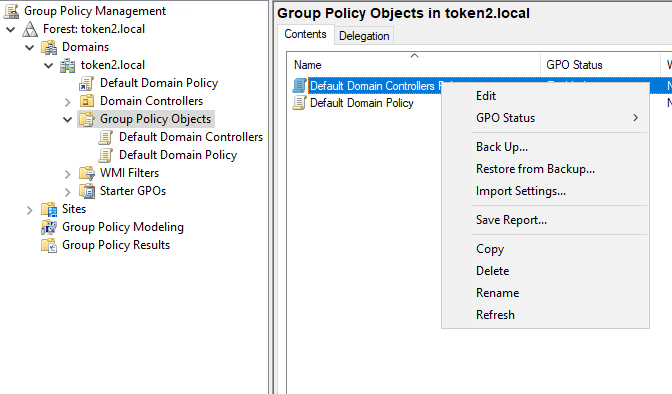
"gpmc.msc"and press Enter. - Navigate to the AD forest and domain containing your server, double-click your server, and double-click Group Policy Objects.
- Right-click the group policy you want to edit and select Edit.
- Expand Computer Configuration > Policies > Windows Settings > Security Settings > Public Key Policies.
- Right-click Certificate Services Client – Certificate Enrollment Policy and select Properties.
- Make the changes as described below:
- Right-click Certificate Services Client – Auto-Enrollment Policy, select Properties, and make the changes as described below:
- Expand User Configuration > Policies > Windows Settings > Security Settings > Public Key Policies. Apply the same changes to the same certificates.
![[Screenshot: Certificate Enrollment Policy Properties]](/img/upl/2025-11-23 18_43_43-AD Server on PC - Virtual Machine Connection.png)
![[Screenshot: Auto-Enrollment Policy Properties]](/img/upl/2025-11-23 18_44_39-AD Server on PC - Virtual Machine Connection.png)
4. Use Auto-Enrollment to Enroll Users
This section explains the steps users need to follow to auto-enroll their key for login.
- Log into a user account on a Windows 10/11 workstation connected to the domain. A Certificate Enrollment notification appears above the System Tray.
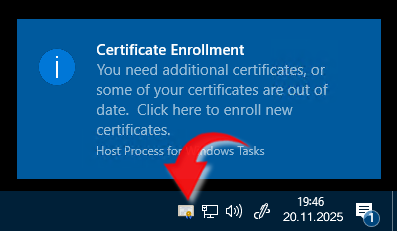
- Click the notification to open the Certificate Enrollment wizard. If the popup disappears (or didn't appear initially), click the arrow in the System Tray to expand the options and click the certificate icon.
- On the initial screen, click Next.
![[Screenshot: Certificate Enrollment Wizard]](/img/upl/beforeyoubegincert.png)
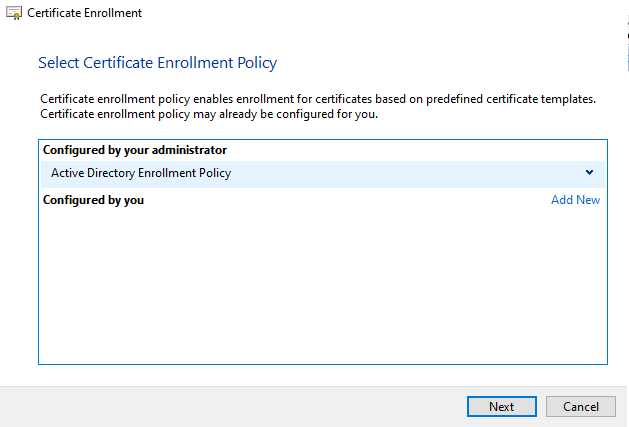
- On the next screen, select "Active Directory Enrollment Policy", then click Next
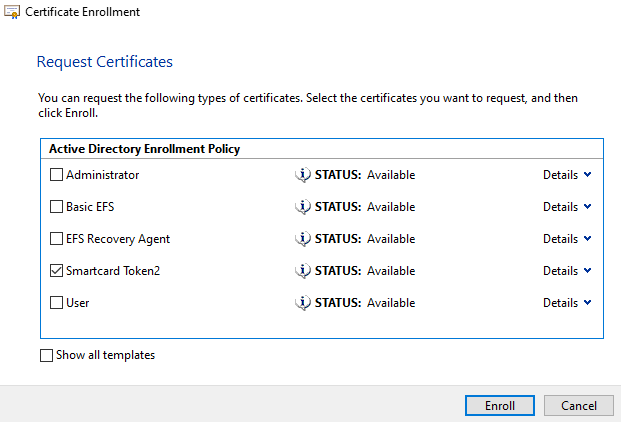
- Select the appropriate certificate template and click Enroll. If multiple templates appear, "STATUS: Enrollment required" should appear next to the correct template if it was set up properly.
- Enter your key's PIV PIN, then click OK. If the PIN has not been set, enter the default PIN:
865362(the default pin of Token2 PIV enabled devices with PIN complexity implemented) - Windows will enroll the certificate for Windows login. After success, click Finish.
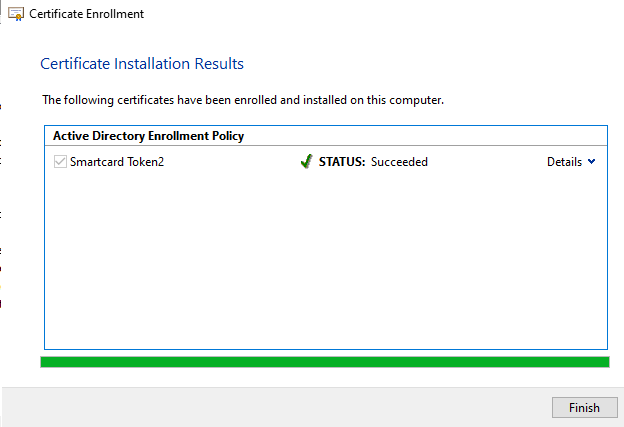
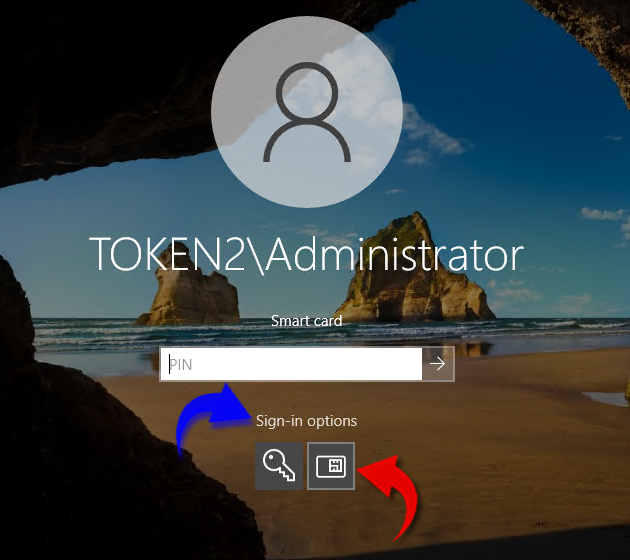
- Next time you log in to this machine, you can select the Smart Card login method.
5. Enroll Manually
If you want to manually enroll the certificate, or if auto-enrollment fails, you can adjust the certificate template properties and enroll it yourself. Use these steps also if self-enrollment icon is not appearing on the client side.
certtmpl.msc, go to the Security tab, and uncheck the Autoenroll permissioncertmgr.msc, go to Personal - Certificates, right-click, select All Tasks, then Request New Certificate.![[Screenshot: Certificate Manager - Request New Certificate]](/img/upl/2025-11-23 19_16_44-CompatWindow.png)
Next,
Next,
Select the certificate template you created in previous steps.
Next time you log in with your key inserted, you can use the Smart Card login method.
FAQ – PIV Windows Login
When is the MiniDriver needed?
The MiniDriver is required only for certificate enrollment (self-enrollment). Windows cannot write keys/certificates to most PIV tokens without the vendor MiniDriver.
Why do I see “The smart card is read-only” during enrollment?
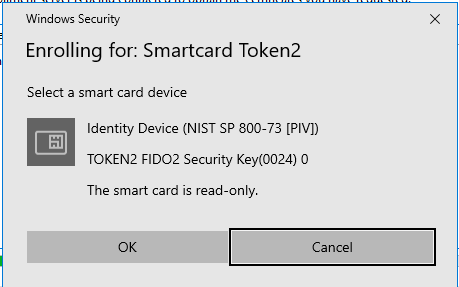
This appears when the MiniDriver is not installed. Without it, Windows treats the PIV application as read-only and cannot create or write certificates.
Fix: install our MiniDriver and retry enrollment.