T2F2 TOTP Authenticator
Last updated 2026-06-20
Our PIN+ series FIDO2 keys support emulating the TOTP protocol using our Companion app. While providing the highest security level possible with such devices, the user experience is still far from ideal. I.e. to perform a TOTP-protected login on a Windows machine using the companion app, users would have to perform the following actions:
- Plug the FIDO2 key into a USB port
- Launch the companion app
- Browse thru the existing TOTP profiles and find the one needed to login
- Double-click on the profile badge (this will copy the OTP to the clipboard)
- Go back to the login page that requests the TOTP
- Paste the OTP from the clipboard
- Complete the process by clicking on Submit or by hitting the Enter button
So, seven steps for a relatively simple operation. This may be fine if the login is done once a day, but we can imagine situations where some of the systems require performing these operations quite often - in such a case, this can become a headache.
As an effort to improve this experience (at least when using Windows) we have come up with a new application, called T2 TOTP Authenticator.
T2 TOTP Authenticator is a dedicated TOTP app for our PIN+ series keys, with several improvements over the companion app (the full list is given in the last section of this guide), the main one being the "Auto OTP" function. It is a fully open-source application, rewritten from scratch in the Rust programming language, and released under the MIT or Apache-2.0 licenses.
Auto OTP feature
The idea behind this is simple and is based on using keyboard shortcuts (hotkeys) to send the OTP generated for a particular account to the current input focus. So, this means that when the user needs to enter the OTP, instead of performing the seven steps described earlier, hitting a hotkey (i.e. Ctrl+Alt+Z) is enough.
As a summary, instead of a seven-step procedure, logging in using the TOTP Authenticator app will require just three steps (in case the FIDO2 Key is already plugged in, and the app is already running, the process will require only one operation - hitting the hotkeys combination).
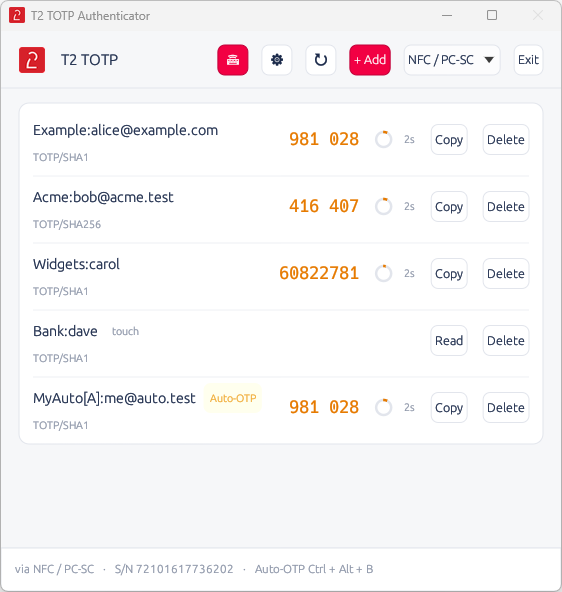
Please note that the PIN+ series security keys with TOTP can contain up to 50 TOTP profiles, but only one profile can be used with the Auto OTP feature.
The interface explained
The app looks similar to the companion app, but with only the TOTP feature implemented. As already explained, only one TOTP profile can be used with the Auto OTP feature, such profile will have a special tag ([A] string) appended to its issuer value.
Deployment and configuration
Different from the companion app, TOTP Authenticator is a self-contained single-file executable. It can be deployed in a centralized manner. The settings can be also delivered together with the executable (by default, the settings file is created on the first run). The settings file is located under %APPDATA%\t2totp\settings.conf (i.e. C:\Users\yourUsername\AppData\Roaming\t2totp\settings.conf) and is a simple key = value file containing the following values:
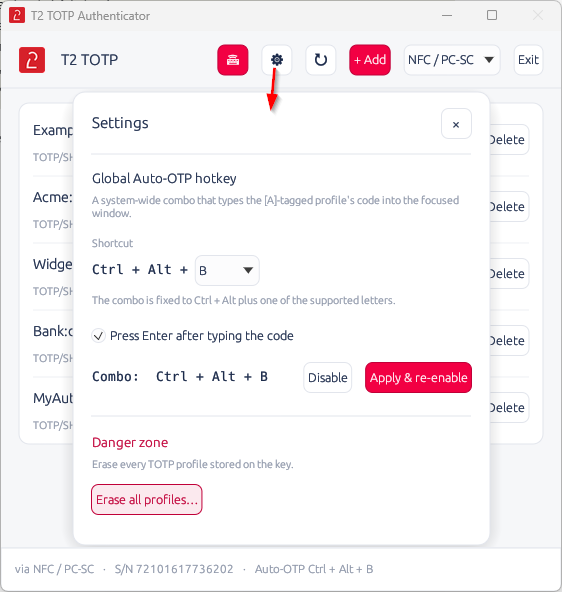
transport = auto              ;; which transport to use: auto | hid | nfc
hotkey_enabled = true         ;; enable the Auto OTP hotkey (true or false)
hotkey_key = KeyZ             ;; the second key of the combination (Ctrl + Alt + Letter)
                              ;; one of: KeyA, KeyB, KeyC, KeyF, KeyN, KeyQ, KeyS, KeyV, KeyX, KeyZ
hotkey_append_enter = true    ;; send the 'Enter' keystroke after the OTP (true or false)
The same settings can be set via the GUI as well, by going to the Settings dialog:
Adding a TOTP Profile
The procedure is similar to the steps explained in the Companion App. The app also includes an optional QR scanning feature: when enabled, the Add form can capture a TOTP QR code shown on your screen and fill in the issuer, account, secret, algorithm, digits and period automatically (capture and decoding happen entirely on your machine, nothing is uploaded). Below we will explain how a TOTP Profile can be provisioned manually using Office 365 / Azure MFA as an example.
Follow the steps below to add an Office 365 TOTP Profile to your PIN+ series security key. Have your key plugged in and the T2 TOTP Authenticator app running before starting these steps.
Step 1. Retrieve the TOTP Secret key
Login to your Office 365 account and navigate to the security settings page: https://mysignins.microsoft.com/security-info
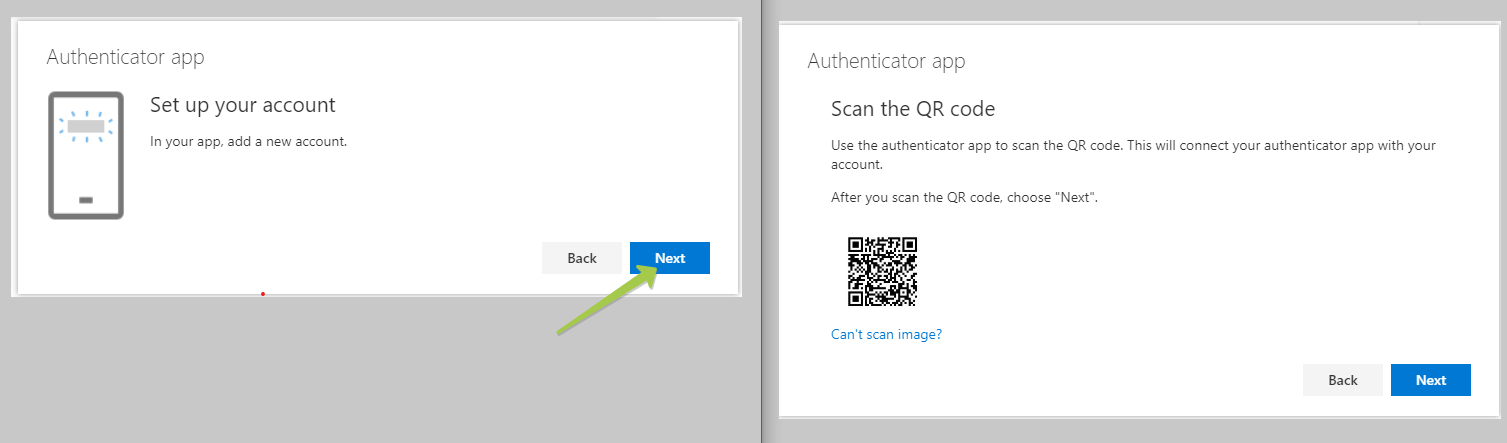
From the Security info page, select "Add Method", and "Authenticator App" from the list.
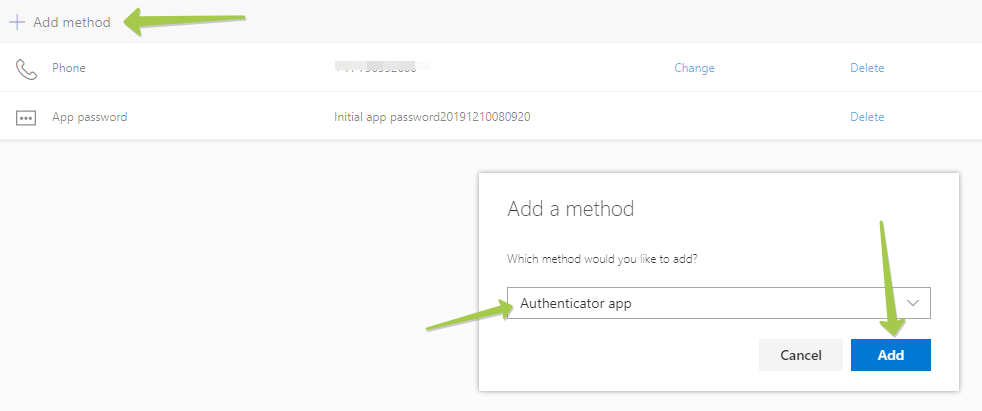
Click "Add" to proceed to the next step. By default, it prompts to use Microsoft Authenticator, which uses a different OTP protocol, which cannot be transferred over to our hardware tokens. Please click on "I want to use a different authenticator app" to generate a TOTP QR code instead.
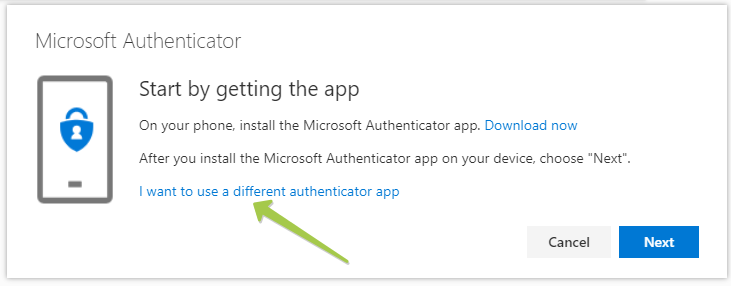
On the next window, click "Next" to get the QR code displayed on the screen
On the 'Scan the QR code' page, click the 'Can't scan image?' button and copy the secret key (which will be used in the next step)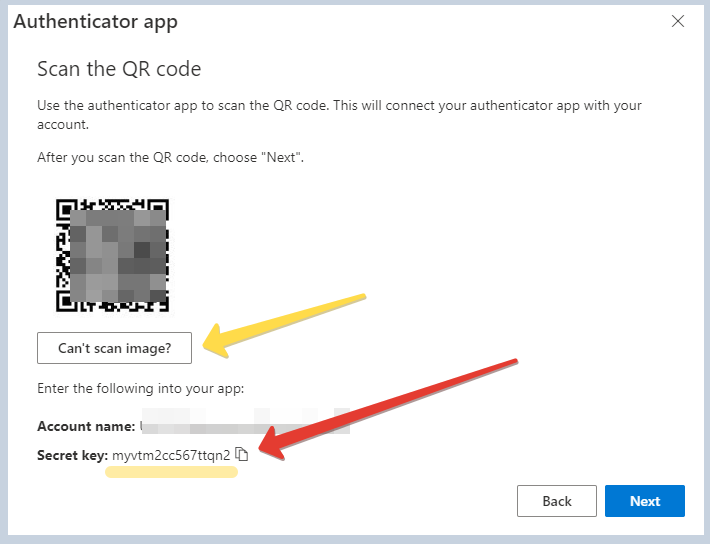
Keep this window open, we will complete the verification after the next step is done.
Step 2. Add the TOTP Secret to your FIDO2 Security key
Open the TOTP Authenticator app and click on "+" (Add account) button to open the TOTP Account creation form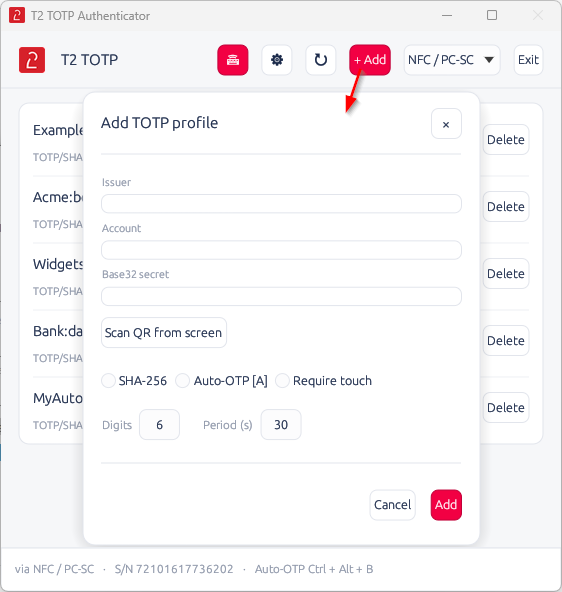
Fill the OTP Account creation form as described below:
- Issuer : signifies the system this OTP will be used for. You can use "O365" for this field.
- Account name: put your username here
- Secret key : paste or type the secret key value retrieved in the previous step
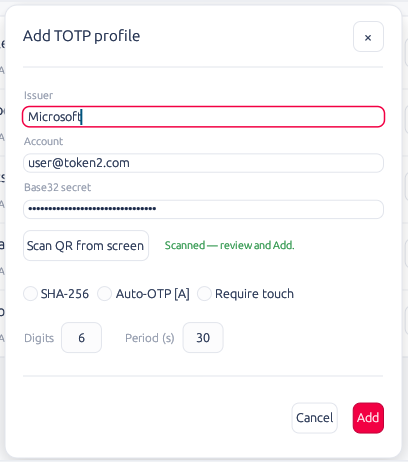
Click on the "ADD" button to complete adding the profile. The profile should appear in the list.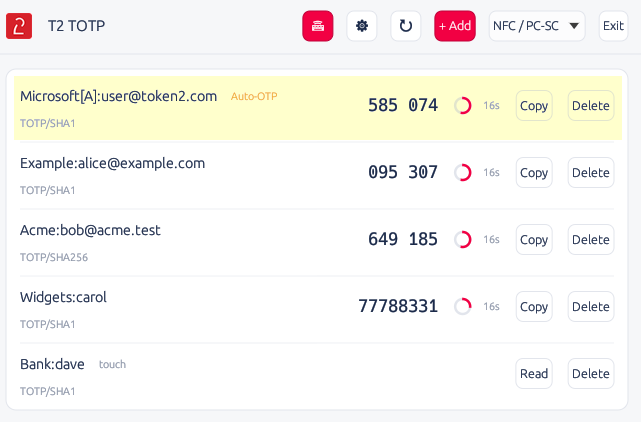
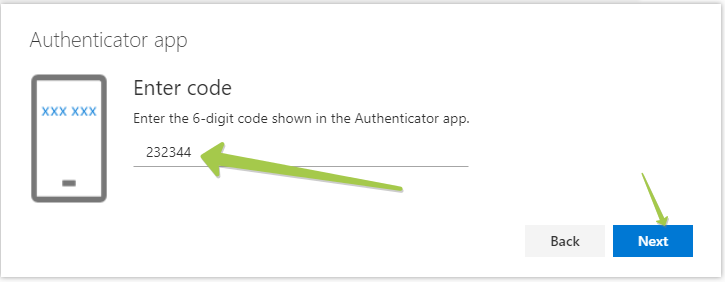
Now, we are ready to complete the MFA enrollment in our Office 365 account. To do so, go back to your security settings page (the one we left open in the previous step). To verify the OTP, click on the Next button, and on the next window, you have to enter the OTP code displayed on the TOTP Profile.
Command-line tool
In addition to the GUI, the project ships a small command-line tool (t2totp) for scripting and headless use — listing codes, adding or removing profiles, and inspecting the key over USB-HID or NFC/PC-SC. For security, the secret is never passed on the command line; it is read from standard input or the T2TOTP_SECRET environment variable.
t2totp info                                  ;; show the connected key (serial, transport, TOTP support)
t2totp list                                  ;; list stored profiles with live TOTP codes
t2totp code <issuer> <account>                ;; print the current code for one profile
t2totp add  <issuer> <account> [--auto]       ;; add a profile (--auto appends the [A] tag)
t2totp delete <issuer> <account>              ;; delete a profile
t2totp erase --yes                           ;; erase ALL profiles on the key
FAQ
Q: Can I set a TOTP profile as autoOTP enabled?
A: You can only set this parameter when creating the TOTP profile. For security reasons, the API does not allow modification of the TOTP slot settings.
Q: Can I have more than one autoOTP enabled profile?
A: The tag ([A] string) is just text appended to the profile name, so you technically can have more than one profile with this tag. However, only the last one will be used for the autoOTP feature (the list is sorted alphabetically).
Q: Why is the app requesting to be launched in Admin mode?
A: If the USB key has been configured to disable HID USB mode, access to TOTP data is only possible via the FIDO channel, which requires admin rights.
Q: Is this open source?
A: Yes. T2 TOTP Authenticator is open source, rewritten from scratch in Rust and dual-licensed under the MIT or Apache-2.0 licenses. You are free to read, audit, build and extend it.
Q: Does it work on macOS or Linux?
A: The release is for Windows, as the original project was Windows-only. Because the app is written in Rust, macOS and Linux builds are possible from the same source, but they are untested and not part of this release — mainly because of OS-specific behaviour around the global hotkey and synthetic keystrokes.
Download
You can download T2 TOTP Authenticator below. The specifications are as follows:
Type: standalone exe (portable) ~5Mb
Admin rights required: No (unless the key has HID USB and CCID mode disabled)
License: Open source (MIT or Apache-2.0)